Self-Service Employee

Payslip and leave, on your phone

The employee sees the monthly payslip and the remaining leave days on the phone, then requests leave from the app. The office approves the request in OmniGest ERP or in iHR, and the approved days enter the timesheet automatically. The manager sees in the calendar who from the team is on leave next week.

From 99 lei per month, excl. VAT.

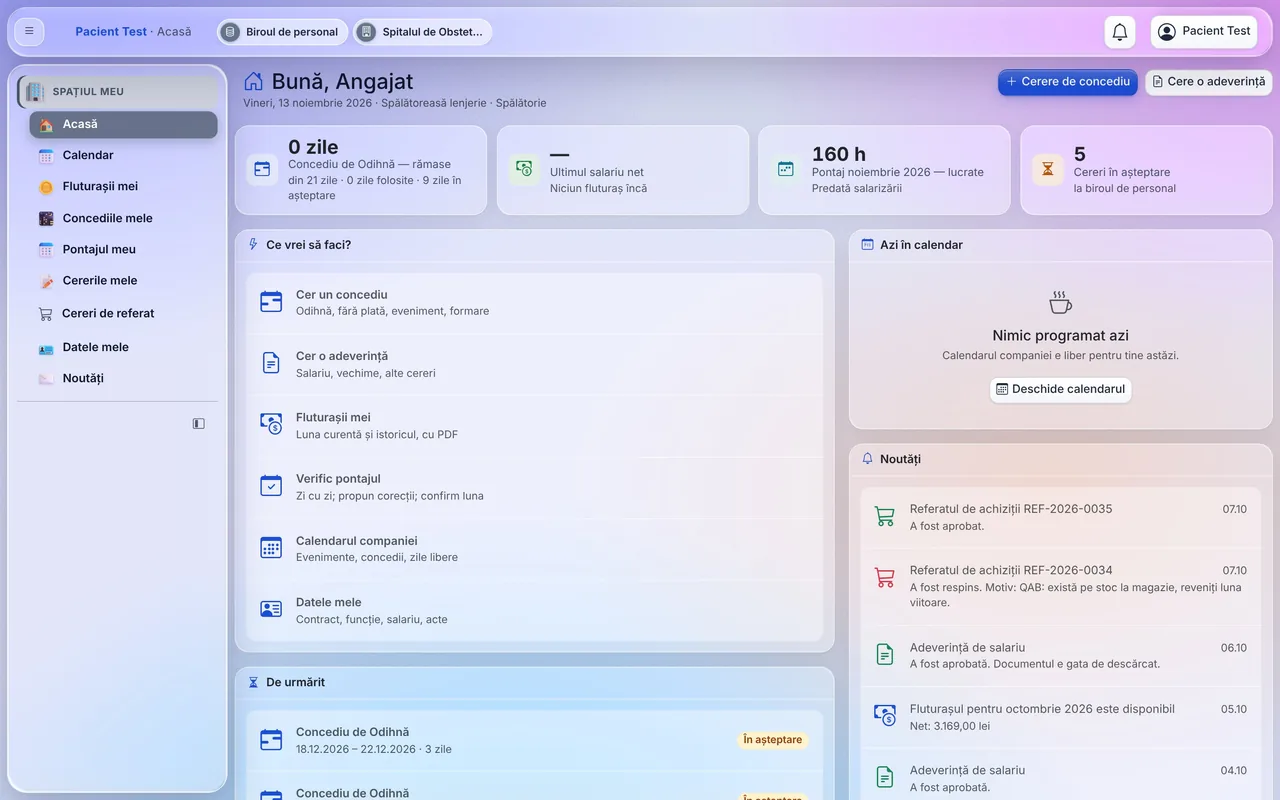
Self-Service: first page of a test employee, with leave balance, monthly timesheet, shortcuts and news
Everyone sees only their own dataIn Self-Service, only the employee sees their own payslips, contract, and timesheet.
Data, from OmniGest ERP or from iHRSelf-Service reads them from the company’s payroll application and does not keep copies of the payslips or the balances.
The certificate, generated at approvalWith OmniGest ERP, the PDF of the certificate is created from the payroll data at the moment the office approves the request.

A leave request

Where a leave request sent from the phone arrives

The employee chooses the type and the days and sees how many days remain. The request enters OmniGest ERP, on the “Requests from the portal” screen, or iHR, on the unit’s approval route. The decision returns in “News”. From iHR it arrives in at most one minute, and from OmniGest ERP it appears at the next opening of the application.

The request enters OmniGest ERP or iHR, with a registry number.

From iHR, the decision appears in “News” in at most one minute.

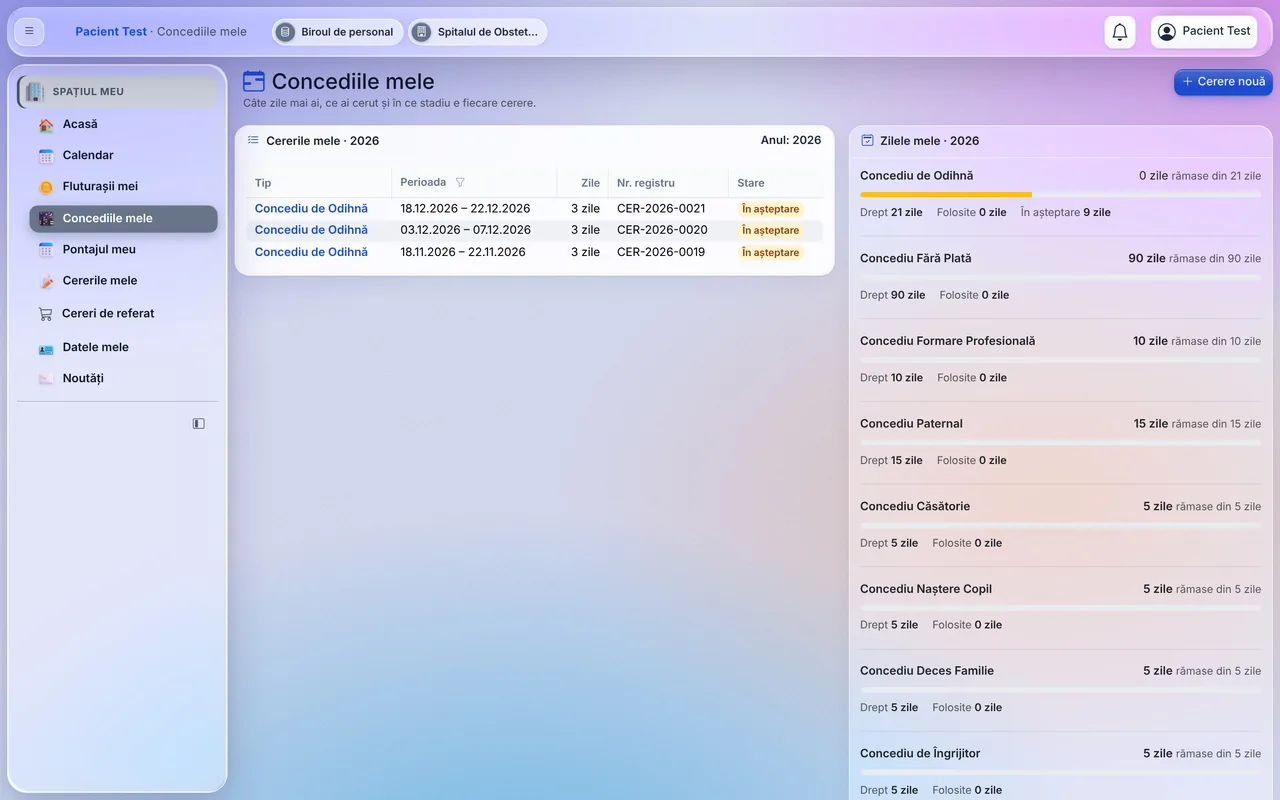
Leave of a test employee in Self-Service: balance by types and requests sent
Balance by leave type and submitted requests, on test data.

Who it is for

What Self-Service solves for everyone in the company

The question everyone asks themselves and what they do in Self-Service to find the answer.

The owner or the director

Why do employees call the HR office to find out how many leave days they have left?

Each employee sees in Self-Service the leave balance by type, the payslip for each month and the timesheet. Leave requests and certificate requests come from the app, with a registry number, and a request sent twice is registered only once.

The HR director

Do requests still arrive on paper, by email and by phone?

With OmniGest ERP, leaves, timesheet corrections, and certificate requests arrive on the “Requests from the portal” screen, each on its own tab. A rejection requires a reason, and the employee reads it. With iHR, requests enter the usual screens of the HR office.

Payroll economist

Who checks the timesheet before closing the month?

The employee sees the timesheet day by day and confirms the month. If a day does not match, they propose the correction, with a reason. The month handed over to payroll no longer receives corrections. With OmniGest ERP, approved leave days enter the timesheet automatically, and confirmations appear on the office screen.

The direct manager

Who from the team is on leave next week?

The calendar shows the approved leaves of the colleagues. With iHR you see your structure, with OmniGest ERP the whole company. You approve the timesheet corrections of your people in iHR. Requests for annual leave also pass through you there, if the unit has placed you on the approval route. With OmniGest ERP the payroll office decides.

Employee

How many leave days do I have left and when is the certificate ready?

On the first page you see the remaining leave days, the last net salary, the hours worked this month and the pending requests. You request leave or a certificate from the phone and see the status of each request. You open the issued certificate as a PDF.

Application administrator

What do I do when an employee cannot see their data?

The person whose account is not linked to a file receives a screen that tells them what to ask the HR office. The administrator sees the links between accounts and files, the connection status with OmniGest ERP or with iHR and checks it on request.

Modules

All modules, grouped by each person’s work

Each employee sees only their own data. The menu shows only the screens offered by the company’s payroll application, and everyone can hide what they do not use.

Login and first page

Every employee, on phone or computer

  • Entry from Hypen One The employee opens Self-Service from the portal's application list, with their account, without another password. Any new account from the portal receives Self-Service.
  • The record, found automatically On first entry, the application searches for the person's record in OmniGest ERP or in iHR and remembers where it found it. If the record is closed, it searches again.
  • Account still unlinked The person without a linked record finds out what to ask the HR office and has the “Search again” button. The calendar and “News” work even so.
  • Home page Remaining leave days, last net salary, hours worked this month and pending requests. Below are the shortcuts “Request leave”, “Request a certificate” and “Check timesheet”, requests to track, what's today in the calendar and the latest news.
  • Data reloaded on request The “Reload data” button reads everything again from the payroll application.
  • When payroll does not respond If OmniGest ERP or iHR does not respond, the page says “Temporarily unavailable” and has the “Try again” button. After three failures in a row, the application waits a minute before asking again, so the portal does not freeze.
  • On your phone The screens arrange themselves on the phone. The calendar starts on the agenda, details open from the bottom, and an event moves by holding a finger on it. Hypen One, from which Self-Service opens, installs on the phone as a web application.

My contract and my data

Employee

  • Contract The function, structure, number and type of contract, period, working time and gross basic salary.
  • History in the company Contracts in force, future or suspended. Those terminated are collapsed, and additional acts show the date, number and what they changed.
  • Contract documents They open as PDF directly from the payroll application, without copies kept in Self-Service. With OmniGest ERP, each additional act has its PDF. With iHR, the additional act does not yet have its own PDF.
  • Identity Name, employee number, email, employment date and employer, with tax ID.

Salary

Employee

  • Payslips by years All payslips of a year, newest first, with year selection.
  • Payslip in detail Net, gross and days worked. Income and deductions on lines, with the calculation base. Night, overtime, weekend and on-call hours. Employer costs, which are not deducted from salary. Type of payment: monthly salary, advance, settlement, adjustment or bonus.
  • Payslip PDF Exactly the one issued by payroll. With iHR, each download enters the download log.
  • New payslip Appears in “News”, with the net, the first time the employee opens the home page or “News” after issuance.

Leave

The employee; approval is given in OmniGest ERP or in iHR

  • Balance by types For each year: days entitled, carried over, used, pending and remaining.
  • My requests Type, period, days, registry number and status of each request.
  • New request The form shows the remaining balance by type, if the type is paid, the notice period, the ceiling per request and an estimate of working days. With OmniGest ERP, annual leave and unpaid leave are requested. With iHR, the types configured in iHR are requested, except unpaid leave and hourly leave.
  • The substitute With iHR, the employee chooses the colleague who replaces them.
  • The supporting document With iHR, a PDF or an image of up to 10 MB, when the type of leave requires it.
  • One request, only once A double click or a reloaded page does not send the request a second time, and the same request still pending is flagged.
  • Status and cancellation The request sheet shows the status, the registry number, the working days, the substitute, the decision date and the reason for rejection. While it is pending, the request can be cancelled.
  • Approval Approval is given in the payroll application. With OmniGest ERP it is given by the payroll office, and the approved days enter the timesheet automatically, if the month is not already validated. With iHR, the annual leave request goes on the unit's approval route, for example the head of structure, the personnel office and the manager.

Timesheets

The employee; corrections are approved in OmniGest ERP or in iHR

  • The month, day by day Each day with its type (worked, leave, medical, absent, off, holiday), the hours, the entry and the exit. The monthly totals: hours, days, leave, medical, night and overtime hours.
  • Correction for a day For a past day, the employee proposes the type of day (worked, from home, delegation, off), the entry, the exit, the hours, the break and the reason, which is mandatory. The month submitted to payroll no longer receives corrections.
  • Response to corrections Each proposal, with the day, the reason, the response and the status.
  • Decision on correction With iHR it is taken by the head of the structure. With OmniGest ERP it is taken by the payroll office, and upon approval the day is rewritten and the month is recalculated.
  • Confirmation of the month The employee presses «Confirm month». If the timesheet has changed after confirmation, the application asks them to check it again.

Certificates and other requests

The employee; the personnel or payroll office

  • New request The types and fields come from the payroll application. A field appears only when it makes sense, for example the month only for the certificate for a certain month. The employee can write a message for the office and can attach a file where the type requires it.
  • The types, with OmniGest ERP The salary certificate, for the previous month or for the last 6 months, the length of service certificate and the general certificate, each with the place where it is submitted, plus «other request», in free text.
  • The types, with iHR The salary certificate, general or length of service, meal vouchers, medical dispensation, professional training, a renewed document, the certified copies from the personal file and the extract from REGES-ONLINE.
  • Status and response The registry number, the completed fields, the office's response, the reason for rejection or the clarifications requested. The issued certificate opens as a PDF. With OmniGest ERP, it is generated from the payroll data at the time of approval.
  • My requests The list of requests from each year, with their status.
  • One request, only once The same request, while it is still being processed, cannot be submitted a second time.
  • At the office in OmniGest ERP The «Requests from the portal» screen has three tabs: leaves, timesheet corrections and certificates with the other requests. Confirmations of the month also appear there. Rejection requires a reason, which the employee reads.
  • At the office in iHR Requests appear in the usual screens of the personnel office: «Requests to process» and the leave register.

Company calendar

All employees, including those without a file in the payroll application

  • Four views Month, week, day and the agenda for 30 days, without reloading the page.
  • New event The title, the type (meeting, event, training, deadline), all day or with hours, the location and the details. It is created from the button, with a click on a day or by dragging over free hours.
  • Participants Colleagues are searched by name or by email and see the event in their calendar. External persons are entered with the email address. Participants do not receive an invitation by email and cannot reply from the application.
  • Recurrence Daily, weekly on the chosen days, monthly, annually or every n, until a date, a number of times or without end. The rule is read in words, for example “it repeats weekly, on Mondays and Wednesdays”.
  • Public or private Anyone can see the event for the whole company. Someone else’s private one appears only as “Busy”, without title, location or participants. The application administrator sees and modifies any event.
  • Moving and editing The organiser moves the event by dragging it, with the mouse or holding a finger on it, and edits or deletes it. From a series they can remove only one occurrence.
  • Phone calendar An event downloads for Outlook, Google or phone. A personal link, added only once, brings into the phone calendar six months forward and six back, with events, leave and holidays. The link can be replaced at any time.
  • Public holidays Statutory holidays are calculated for any year, with Orthodox Easter and Pentecost.
  • Leave in the calendar Your pending or approved requests and colleagues’ approved leave. With iHR you see colleagues in the same structure, with OmniGest ERP the whole company.

News and notifications

All employees

  • News feed Leave decisions, certificates and corrections, new payslips and statement decisions. The bell in the bar shows how many are unread.
  • iHR decisions They reach News within one minute at most, including changing the period of an already approved leave and a request for clarification.
  • OmniGest ERP decisions The application finds them when the employee opens the first page or News, at most once per minute. Until then no notification is sent.
  • Device notifications The button “Receive notifications on this device” turns them on for phone or computer. Each update reaches all the person’s devices and opens News. They work in browsers that accept web notifications.

Procurement statements

Only where the institution uses iConta

  • Request for statement of need Any employee, even without a file in the payroll application, sends to procurement what must be bought: the object, justification, structure, period, date from which it is needed and products, with unit of measure and quantity, without prices.
  • Request status Read from iConta at every opening: sent, in progress, approved, taken over by procurement or rejected.
  • Decision Approval or rejection, with the reason, appears in News and as a notification.

Help and administration

All employees; application administrator

  • Interactive guides “First steps” for the employee with a file and for the one without, plus one step-by-step guide each for leave, timesheets, calendar, payslips, certificates, statements and news. No step saves anything. Screens are in Romanian, and the guides are also in English and French.
  • Menu Shows only the screens offered by the company’s payroll application. Everyone can hide what they do not use.
  • Link to payroll Self-Service detects by itself whether OmniGest ERP or iHR is installed in Hypen One and aligns every 10 minutes. The administrator sees the status of each link, checks it on request, stops it or adds one manually.
  • Account links The last 200 links between accounts and files. Deleting one causes the person to be searched again at the next login.
  • Roles “Administrator” or “Employee” is set in Hypen One.
  • Calendar in Hypen One With Hypen One on subscription, the calendar can show, read-only, company events and leave from Self-Service. At colleagues the type of leave does not appear. The function is off by default and is turned on at installation.

In preparation: shift exchange, for units that work with iHR. We announce it here when it can be used.

OmniGest ERP or iHR

What depends on the company’s payroll application

Self-Service shows the data held by the company’s payroll application: OmniGest ERP, at companies, or iHR, at hospitals and public institutions. Payslips, leave, timesheets and certificates come from it. The differences between the two are below.

Who it is for

OmniGest ERP

Companies that keep their payroll in OmniGest ERP.

iHR

Hospitals and public institutions that keep their staff in iHR.

Payslip, contract, balance and timesheet

OmniGest ERP

They come from OmniGest ERP.

iHR

They come from iHR.

Leave that can be requested

OmniGest ERP

Annual leave and unpaid leave.

iHR

The types configured in iHR, except unpaid leave and hourly permission.

The substitute and the supporting document

OmniGest ERP

The form does not require them.

iHR

The employee chooses the substitute and attaches the document when the type of leave requires it.

Who approves

OmniGest ERP

The payroll office, on the «Requests from the portal» screen. Approved leave days enter the timesheet automatically.

iHR

The unit's approval path, for example the head of structure, the HR office and the manager. Timesheet corrections are approved by the head of the structure.

Certificates and requests

OmniGest ERP

Four types: salary certificate, length of service, general and «other request». The certificate PDF is generated from payroll data upon approval.

iHR

Nine types, from the salary certificate to the extract from REGES-ONLINE. The document is issued by the HR office.

When the employee learns the decision

OmniGest ERP

When they open the home page or «News».

iHR

Within at most one minute, in «News», and as a notification, if they have enabled notifications.

Colleagues in the calendar

OmniGest ERP

Approved leave from the entire company.

iHR

Approved leave of colleagues in the same structure.

Linking the account

OmniGest ERP

It happens automatically, based on the email address in the employee's file, when the address is unique in the company.

iHR

The HR office does it. The employee on notice continues to see their data.

With OmniGest ERP, requests, corrections and month confirmation apply only to employees with an active contract. Without OmniGest ERP or iHR, Self-Service shows only the company calendar and «News», and purchase statements require iConta.

A working day

An ordinary day in a company that uses Self-Service

The times are indicative. Each step below is an action that people take in the application.

  1. 08:00

    Home page

    An employee opens Self-Service on her phone. She sees how many days of annual leave she has left, the last net salary, the hours worked this month and what she has today in the calendar.

  2. 08:10

    Leave request

    She chooses annual leave and five days in December. The form shows her how many days she would have left and an estimate of working days. She sends the request.

  3. 10:00

    The office's decision

    With OmniGest ERP, the economist opens «Requests from the portal» and approves the leave, and the days enter the monthly timesheet. With iHR, the request goes through the approval path set by the unit.

  4. 10:01

    The news

    With iHR, the decision appears in «News» within at most one minute, and the phone receives the notification, if the employee has enabled it. With OmniGest ERP, she sees it at the next opening of the application.

  5. 11:30

    The certificate for the bank

    A colleague requests a salary certificate and writes where he submits it. With OmniGest ERP, the PDF is generated from payroll data when the office approves the request, and the colleague opens it from the request file.

  6. 14:00

    Calendar

    The HR director schedules the monthly training, with repetition every month, for the entire company. Employees who have added their personal link see it also in the phone calendar.

  7. 16:00

    Timesheet correction

    An employee sees that a delegation day appears as a day off. He proposes the correction, chooses «delegation», writes the hours and the reason.

  8. At month end

    Confirmed month

    Employees confirm their timesheet. After salary calculation, the new payslip appears in “News”, with the net amount, when each opens the application.

Leave

Leave request, with the balance

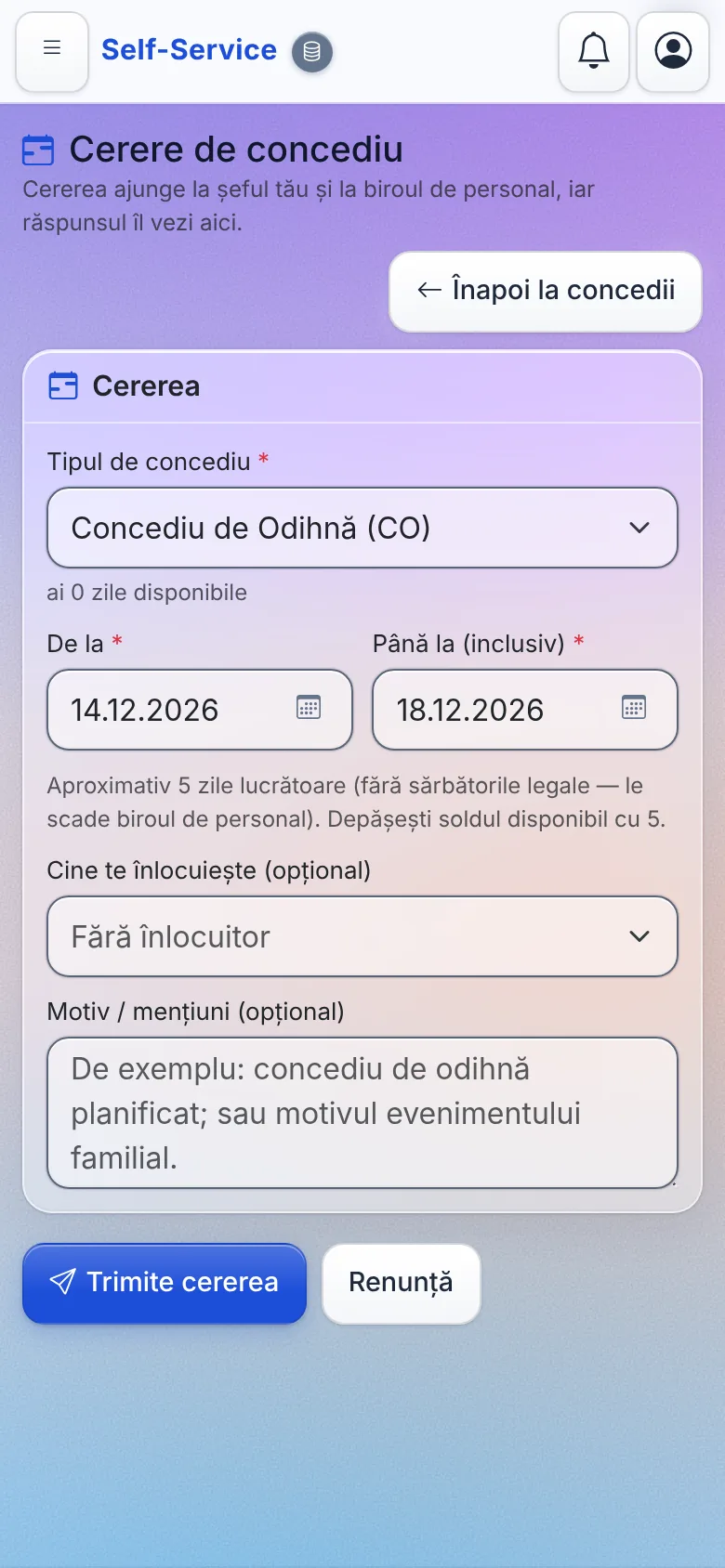
You choose the type and period, and the form tells you how many days remain after the request or by how much you exceed the balance. You also see whether the type is paid, the required notice and an estimate of working days. With iHR you also choose the colleague who replaces you.

Leave request in Self-Service on the phone, with calculated balance and substitute

Payslip

Each month’s payslip

Net pay, gross pay and days worked, then each income and each deduction, with the calculation base. Night hours, overtime, weekend hours and on-call hours have their own rows. Employer costs appear separately, because they are not deducted from salary. The PDF is the one issued by payroll.

  • By years and by months
  • Income and deductions
  • Advance, settlement, bonus
  • PDF from payroll

Timesheets

Timesheet, verified by the employee

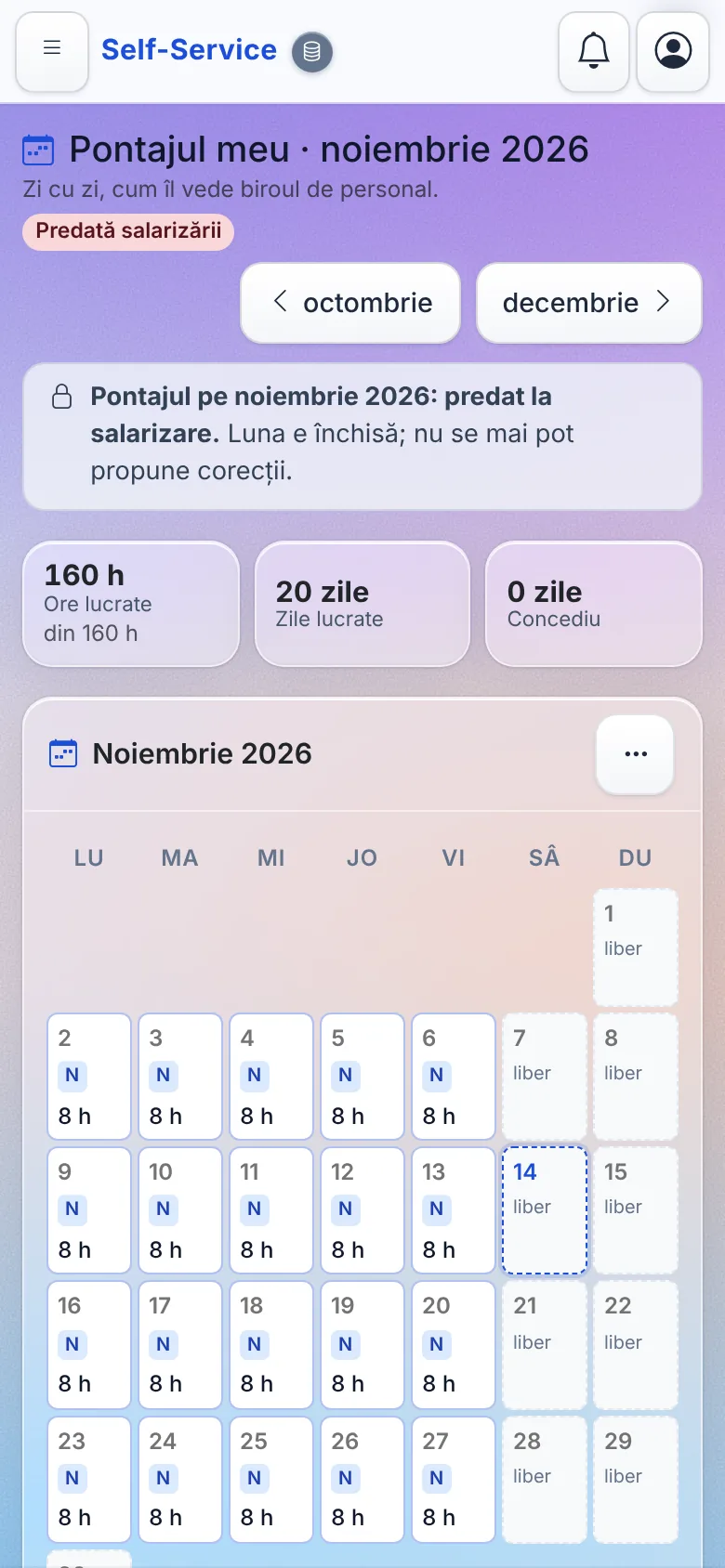
The employee sees the month day by day, with clock-in, clock-out and hours. On a day that does not match, they propose a correction, with the reason. At the end they confirm the month. If the timesheet changes after confirmation, the application asks them to verify it again.

Monthly timesheet of a test employee in Self-Service on the phone, with the month submitted to payroll

Requests and certificates

Certificates, with status and the office’s reply

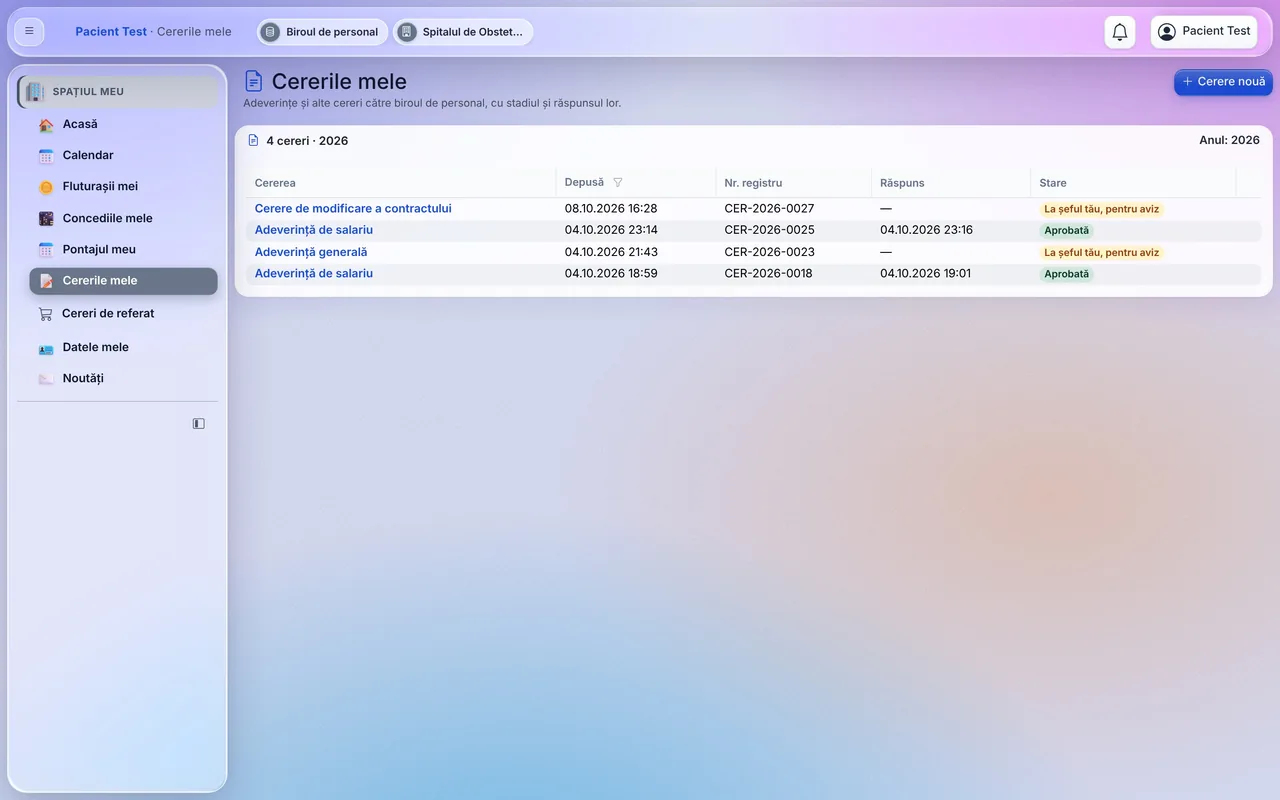
Request types and their fields come from the payroll application, and the form shows only what makes sense for the chosen type. The employee sees the registry number, the office’s reply or the reason for rejection and opens the issued certificate. With OmniGest ERP, the certificate is generated from payroll data at the moment of approval.

Requests of a test employee in Self-Service, with registry number, response and status of each

Company calendar

Company calendar, with leave and public holidays

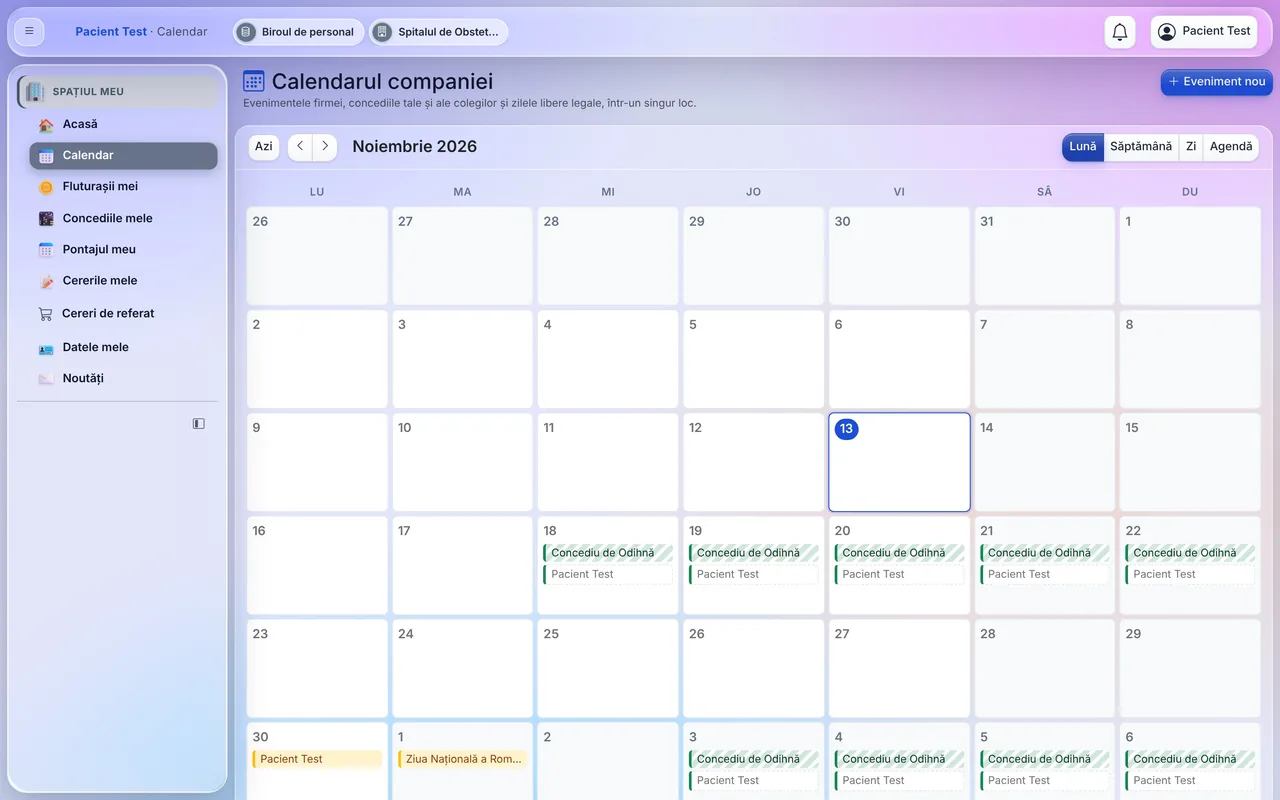
Company events, your leave and your colleagues’ leave and public holidays appear in the same calendar, by month, week, day or agenda. A personal link brings it into the phone calendar, into Outlook or into Google. Other people’s private events appear only as “Busy”.

Company calendar in Self-Service, with leaves and holidays

Legal obligations

What the law requires and where it appears in Self-Service

Employer obligations towards the employee, from the Labour Code and from Government Decision no. 295/2025, and the place in the application where the employee requests or checks.

Salary and length-of-service certificate
The Labour Code, in art. 34 para. (5), obliges the employer to issue, at the employee’s request, a document about their activity, salary and length of service. Government Decision no. 295/2025, in art. 8 para. (7), requires the certificate to be given within at most 15 working days. In Self-Service, the employee requests the certificate and opens it as PDF from the request record, after the office issues it.
Copies from the personal file
Government Decision no. 295/2025, in art. 8 para. (4) and (5), obliges the employer to issue, at the employee’s written request, certified copies of documents from the personal file, within 15 working days. With iHR, the employee requests them from Self-Service, and the form shows the deadline.
Record of working hours
The Labour Code, in art. 119 para. (1), requires the employer to keep a daily record of hours worked by each employee, with the start and end time of the shift. In Self-Service, the employee sees this record day by day, proposes corrections with reason and confirms the month.
Public holidays
The Labour Code, in art. 139 para. (1), lists the public holidays on which no work is performed. The calendar in Self-Service calculates them for any year, with Good Friday, Easter and Whit Sunday according to the Orthodox calendar.
How to start

First steps until employees work in Self-Service

  1. Choose the size

    Small and medium companies buy online, by card, monthly or annually. For a large company we prepare a quote. If you want to see the application first, request a presentation.

  2. Connect payroll

    Self-Service finds OmniGest ERP or iHR installed in Hypen One by itself. On the providers screen, the administrator sees whether the connection works.

  3. Connect employees

    Each new account in Hypen One receives Self-Service. With OmniGest ERP, the employee is found by the email in the record. With iHR, the connection is made by the HR office.

The “Company” package

Together with OmniGest ERP and FlexiDocs, it costs less

The package brings OmniGest ERP, where salaries are calculated from which Self-Service takes payslips, leave and timesheets, and FlexiDocs, the company document archive. In FlexiDocs you send documents for approval and signature and edit Word and Excel files in the browser. Hypen One, the account with which each employee enters all applications, is included.

  • FlexiDocs
  • Self-Service Employee
  • OmniGest ERP
  • Small company299 lei / monthinstead of 347 lei, bought separately
  • Medium company699 lei / monthinstead of 847 lei, bought separately

Monthly prices, excl. VAT.

Subscription

The price, by company size

Small and medium companies pay monthly or annually, by card. For a large company we prepare a quote. Self-Service runs in Hypen One, so whoever buys it separately also receives the basic Hypen One account. The application is hosted by us and takes its data from OmniGest ERP or from iHR, so the company needs one of them. Hospitals and public institutions that work in iHR buy it through SEAP: request a quote.

Small company

99 lei / month

excl. VAT · 119.79 lei incl. 21% VAT

  • Up to 5 users
  • Up to 25 employees
  • One company
Buy

Medium company

249 lei / month

excl. VAT · 301.29 lei incl. 21% VAT

  • Up to 20 users
  • Up to 100 employees
  • Up to 5 companies
Buy

Large company

On quote

  • We set the size together
Request a quote

Monthly prices, excl. VAT. Paid annually, a year costs as much as 10 months.

Buy the subscription online

You see the final price and pay by card. The platform is installed after payment. If you have questions, talk to the team first.