CertaSign, advanced electronic signature

From ID card to the signed document

The new employee photographs their ID card and takes a selfie, and the company's operator approves their identity. They receive the certificate and sign with their PIN, from their phone or computer. The lawyer checks at any time who signed a contract, when and whether the document has changed since then.

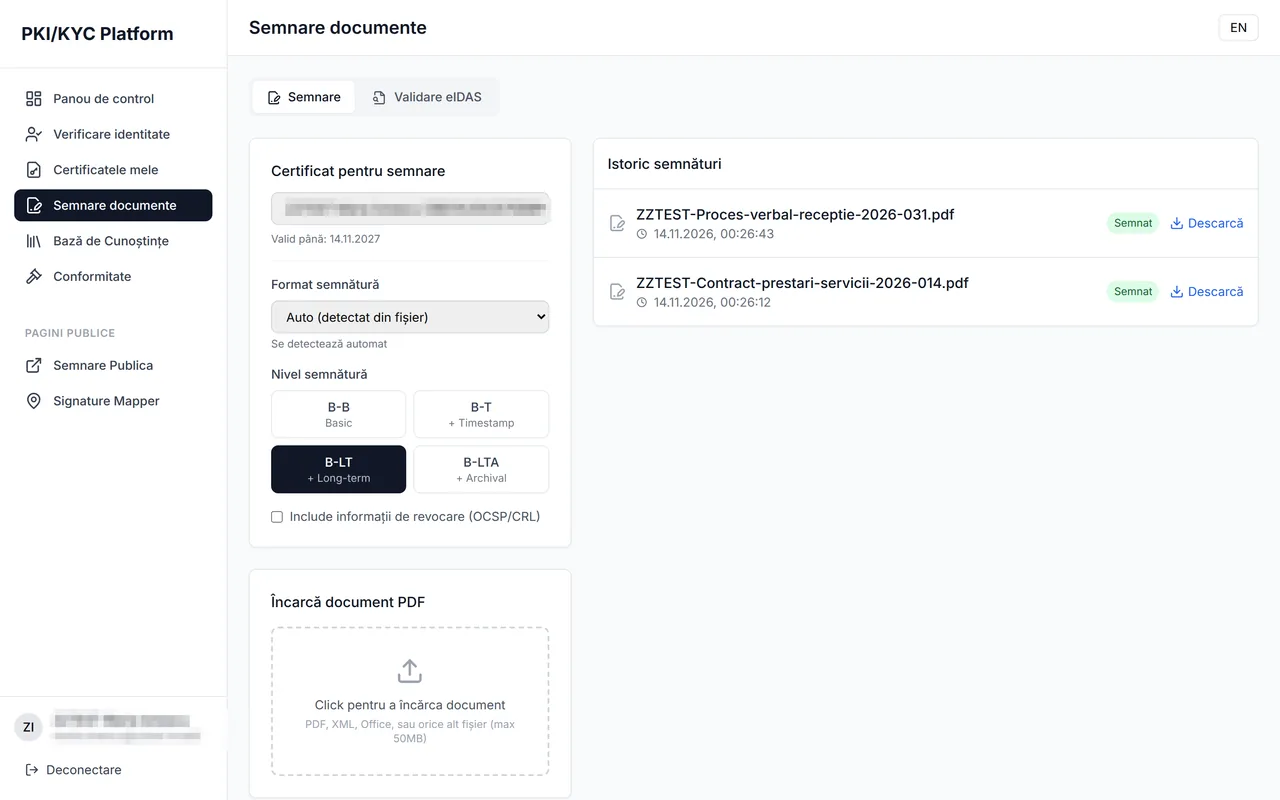
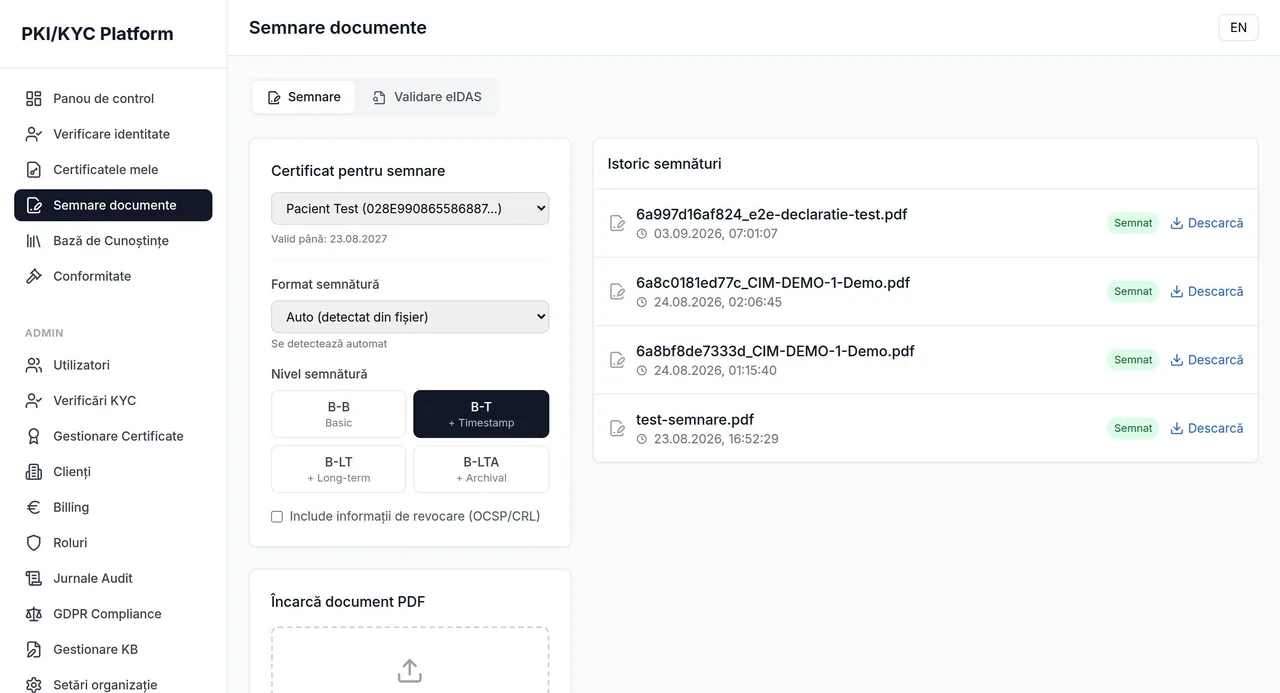
CertaSign: signing a document, with the chosen certificate, the signature level and the history of signed documents
The company's certification authorityEach company has its own authority, with a separate certificate chain. The keys reside in a software HSM and are marked non-exportable.
Each identity, approved by a personThe document is read automatically and the selfie is compared with the photo in the document. The certificate is issued only after the operator approves the file.
An employee's departure, in one stepThe account is deactivated, the certificates are revoked and the signing sessions are closed, from the screen or via API.

Chain of trust

Three links between the keys in the HSM and the signed document

The company's authority keeps its keys in an HSM. A person receives a certificate only after the operator has approved their identity. With the certificate and their PIN they sign PDFs that can be verified at any time in CertaSign.

The document is read automatically, the selfie is compared with the photo in the document, and the operator approves the file.

The PAdES signature links the document to the certificate, and any change made after signing is visible on verification.

Verification of a signature in CertaSign: a test contract uploaded in the validator appears with a valid AdES-T level signature, verified integrity, valid timestamp and certificate issued by a private certification authority
On verification it is visible whether the signature is valid, who signed and when, whether the document changed after signing and which authority issued the certificate.

Who it is for

What CertaSign solves for each person involved

The question each person asks themselves and what they do in CertaSign to find the answer.

The company's lawyer

What value does the signature have and how do I prove who signed?

The signature in CertaSign is an advanced electronic signature. Law no. 214/2024 states in which cases it produces the effects of a handwritten signature; you will find them in the section below. Verification in CertaSign shows the signatory, the signing date and any change made to the document afterwards.

The director

How do I send an internal contract for signature to three people, one after another?

You start the workflow from FlexiDocs: the order of signatories, substitutes and reminders. Each person signs with their CertaSign certificate and confirms with PIN and code. Anyone who does not yet have a certificate receives the enrolment link.

The SSM or HR officer

How do I collect signatures on the training sheets of all employees?

Each employee enrols only once, from the link received by email, and anyone who does not finish receives reminders. On the sheet with the signature fields prepared, the trainee and the instructor each sign in their own field, even on different days. The application that generates the sheets can send a batch of up to 2,000 PDFs, signed in the background after a single authorisation.

The IT officer

Where do the private keys reside and can they be taken off the server?

The authorities' and people's keys are generated in a software HSM (SoftHSM2, via PKCS#11) and are marked non-exportable. Each company has its own token, with a PIN generated and stored encrypted. Your applications connect via API keys with limited rights and receive events via HMAC-signed webhooks.

The identity operator

What do I do when the selfie does not match or the person has a foreign passport?

The file arrives to you with the data from the document next to the declared data, with the scores and images. You correct the fields, approve or reject with reason. When you need to, you call them by video: the person joins from the link received by SMS, and the call is recorded.

The company that serves multiple clients

How do I keep the employees of each client company separate and how much do I bill them?

You keep your client companies in CertaSign, and the operator chooses the company when approving the identity. On each client company you set the price per active certificate per month. The report for a period is calculated by day and downloaded in Excel.
Features

All functions, grouped by who uses them

From identity verification to billing client companies. Each person sees in the menu only what their role allows.

Identity verification

The employee enrolling and the company operator

  • Enrolment on the company page A person without an account enters their name, CNP or foreign document details and the company, then starts the verification. A started verification resumes from where it left off.
  • Verification from the account Anyone who already has an account starts the verification from the «KYC» menu and sees the step they reached.
  • The document read automatically The person photographs the identity card. The application reads the name, CNP, verified by the check digit, and the date of birth, and for passports and EU identity cards, the MRZ zone.
  • Foreign documents Foreign citizens are verified with a passport or EU identity card, without CNP. Their file always goes to the operator.
  • The selfie The selfie is compared with the photo from the document and receives an anti-forgery score, which the operator sees. On a server where the facial recognition library does not start, the score comes out «inconclusive».
  • The «live person» test The person opens their mouth and blinks in front of the camera. The score is calculated on their phone and the server does not recalculate it, so it is an indication for the operator.
  • Retries The document or test can be retried. After 5 failures on the same step, the file automatically goes to the operator.
  • Operator approval Any completed file goes to the operator. They see the data from the document next to the declared data, the scores and images, correct the fields, choose the client company and approve or reject with reason.
  • Mandatory manual verification The company can request that files go to the operator even when automatic verifications fail.
  • Abandoned verifications An automatic file left unfinished closes automatically 5 minutes after the deadline. Those with the operator do not expire.
  • Cancellation of an identity The operator invalidates a person's verification, and their active certificate is revoked.
  • Lost account Anyone who no longer has access to email or phone redoes the verification without an account. The operator approves, and the account is linked again by CNP.

Video identification

The operator and the person being verified

  • At the person's request Instead of the selfie, the person requests a video call with an operator and uploads their document, as a photo or PDF. They can cancel as long as the call has not started.
  • The call The operator calls on the spot or sends an invitation. The person receives the link by SMS and email and enters the call without an account. Calls require the LiveKit video server in the installation.
  • Scheduling The person chooses a free slot from the next 14 days, and each operator sets their schedule.
  • The operator's tools The checklist to tick, image captures of the document and face, data read from the document and chat with attachments in both directions.
  • Recording The call is recorded on video, in MP4, and can be reviewed from the application.
  • Decision At the end, the operator approves or rejects the identity, or closes the session without a decision. The link can be resent.
  • A person's archive All calls, conversations and recordings of the same person stay together, with the operator.

Each person's certificate

The holder and the company's administrator

  • Issuance After approval, the person receives a link. They read the terms and tick the three acceptances, confirm with the code received by SMS or email, choose their signing PIN and revocation PIN and receive the certificate. They can also request it from the “Certificates” page of the account.
  • The terms The text of the terms, in Romanian and English. Acceptance remains on the person's account, with the version, IP address and time.
  • The certificate profile X.509 certificate for one year, with RSA 2048 key generated in HSM, issued by the company's authority. If the company chooses, it also carries the CNP or the document number. A person has only one active certificate.
  • Download The holder downloads the certificate or the entire chain, in PEM format.
  • Renewal The old certificate is revoked with the reason “replaced” and a new one is issued, with a new key. The PINs remain, and the old signatures remain valid through the timestamp.
  • Revocation The holder revokes their certificate with the revocation PIN. The administrator revokes any certificate of the company, with reason. Revocation is final.
  • The PINs The PIN has at least 6 characters. After 5 incorrect PINs, the certificate is locked for 15 minutes.
  • The reminders Emails for those who have not completed enrolment, on days 1–42, and before certificate expiry, at 30, 15, 10, 5, 3 and 0 days. Unsubscribing is done with one click.
  • Certificate records All certificates of the company, with search, filters, sorting and statistics.

Document signing

Signatories and applications that send documents for signing

  • Signing a PDF You upload the PDF, place the visible signature on one or more pages, enter the reason and location, confirm with the PIN and download the signed PAdES PDF.
  • PAdES levels B-B, B-T with timestamp, B-LT with the revocation list placed in the PDF and B-LTA with archive timestamp. The timestamp comes from an external public service, DigiCert by default. Signing in fields and bulk signing stop if the service does not respond. When signing a PDF from the screen, the document may come out at a lower level.
  • PIN and code Signing requires the signing PIN. The company can additionally require a code by SMS or email. The setting takes effect after you save it.
  • Forms with multiple signatories On a form with signature fields prepared, such as the SSM training sheet, each person signs in their field, even on different days, and signatures already placed remain valid. The first signatory can block modification of the rest of the document.
  • Bulk signing The signatory authorises once, with code and PIN, the signing of up to 2,000 PDFs in the same field. The batch runs in the background, resumes after a crash and does not sign anything twice. It is sent by the application that generates the documents, via API.
  • Signing without an account The person with verified identity and active certificate logs in with the phone number and a code received by SMS or email, uploads the PDFs, places the signature once for all, confirms with code and PIN and downloads the signed documents. The session lasts 72 hours.
  • Other formats XML files and Office documents receive a basic XML signature, any other file a separate .p7s signature, and the ASiC container packs a single file. All come out without a timestamp. PAdES levels apply only to PDFs.
  • History Each person sees their signed documents and downloads them again.

Signature verification

The lawyer, the auditor and anyone who receives a signed document

  • Verification in CertaSign Upload a PDF, an XML, a .p7s or an ASiC and see if the signature is valid, who signed, when and if the document has been modified since then. Adobe Reader and other programmes do not trust the company's authority by default, so signatures are verified in CertaSign or after importing the company's chain.
  • The EU DSS report Validation report in the format of the European EU DSS service, when the installation starts this service. In the standard installation it is stopped.
  • Public verification Anyone sends a PDF and finds out if the signature is valid and at what level, from B-B to B-LTA. It works via API.
  • Verification from your applications Partner applications verify a signed PDF with their API key.

Certification authority and keys

IT and the platform administrator

  • Certification authorities The platform has the root authority, for 20 years, with RSA key 4096. Each company receives its intermediate authority, for 10 years, so a separate certificate chain.
  • Keys in HSM The authorities' and people's keys stay in a software HSM, SoftHSM2, accessed via PKCS#11, and are marked non-exportable. Each company has its token, with PIN generated and stored encrypted.
  • The OCSP service An in-house, public OCSP service, according to RFC 6960, tells on the spot if a certificate is valid or revoked. Its address is not entered in certificates, so an external verification programme does not find it by itself.
  • List of revoked certificates The company's authority signs the revocation list, valid for 7 days. The list is published on request, via API, downloaded only with an account, and its address is not entered in certificates.
  • The installation assistant On first start, a web assistant creates the organisation, the administrator account, the HSM, the certification authorities and the e-mail and SMS settings.

Company, accounts and roles

The company administrator

  • Accounts The account is confirmed with a code received by e-mail. After too many wrong passwords it is temporarily blocked. The password is reset with a code, and old sessions are closed. The administrator can resend the activation as a link valid for 30 minutes, by e-mail and SMS.
  • Users List with search, creation, modification, deletion and resending of the enrolment or activation link.
  • An employee's departure In a single step, the account is deactivated, all the person's certificates are revoked and their signing sessions are closed. It also works via API.
  • Roles Basic roles (user, operator, company administrator, platform administrator), new roles and permissions on each action. The menu shows each person only what they are allowed.
  • Settings SMS via sendsms.ro and e-mail via the company's SMTP server, each with a test message, the code at signing and mandatory manual verification.
  • Multiple companies Multiple organisations can be on the same platform. The superadministrator creates, modifies, deletes them after seeing what is deleted and can temporarily enter the account of one of them.

Links with other applications

The integrators and your applications

  • API keys The administrator creates, sees and revokes keys for partner applications, each with its rights: searching for a person, identity data, signature verification, an employee's departure.
  • Searching for a signatory The partner application finds out if the person exists and if they have an active certificate. If not, they receive their enrolment link.
  • Identity data The partner application receives the data read from the document, with a separate right.
  • Webhooks 18 types of events, from enrolment and identity verification to the certificate issued or revoked, signed HMAC-SHA256, with delivery log and retries. Signing documents does not send an event.
  • Signing with the USB token or via SignDesk The application prepares the PDF, the key on the person's token signs, and CertaSign completes the PAdES signature, basic or with timestamp. It works via API, with an integration key.
  • Merging PDFs Multiple files become a single signed document. Works via API.
  • Signature coordinates The integrator opens a PDF and finds the exact coordinates where the signature must be placed.
  • The MCP server An AI assistant reads the documentation, verifies a signature, searches for a person and their verification status. It does not sign and does not issue certificates.
  • API documentation Interactive documentation, Swagger and ReDoc, plus the documentation pages in administration.

Audit log

The auditor and the platform administrator

  • Chained log Each action, from 16 categories, enters a log where each entry is linked to the previous one by a SHA-512 hash. It has filters and statistics.
  • Log verification One click shows if any entry has been modified or deleted.
  • Merkle checkpoints A cryptographic summary of a group of entries, linked to the previous checkpoint. It is done only on request, from a button, and has no external anchoring.
  • Signature report Who signed, which document, by hash, with which certificate, when and from where. Obtained via API, as JSON data.

Personal data

The data protection officer and the administrator

  • Biometric consent When verification starts, consent for processing biometric data is recorded.
  • Withdrawal of consent The holder gives or withdraws consent via API. Withdrawal of biometric consent deletes the verification photos on the spot.
  • Data subject requests The access or deletion request is submitted via API and resolved from the personal data panel.
  • Deletion The name, phone and email are anonymised, and the account is deactivated. Data read from the ID in the verification files, the certificates and the log remain.
  • Exporting the data The holder receives via API the profile, consents and verification status, in JSON.
  • Record of processing activities The company keeps the register of processing activities, with the legal bases.
  • Biometric photos Automatic deletion after a number of days is started from configuration. Until then, the photos are kept.

Client companies and invoicing

The company that signs for multiple clients

  • Client companies The company keeps its client companies and assigns employees to them. The operator chooses the company when approving the identity.
  • Price per certificate Price per active certificate per month, negotiated for each client company, with validity period and history.
  • Billing reports The report of a period, with active certificates calculated per day, is saved unchanged and downloaded in Excel.

Help and language

All users

  • Knowledge base Articles by categories, with search, related articles, feedback and HTML export, in a public version and an internal one. The administrator writes them.
  • Dashboard Each person sees the summary of their certificates and signatures.
  • Language All screens, in Romanian and in English.

In preparation: storing the keys in a hardware HSM. We will announce it here when it can be used.

A working day

A usual day in a company that signs with CertaSign

The times are indicative. Each step below is an action that people take in CertaSign or that the application takes by itself.

  1. 08:30

    A new employee enrols

    Opens the link from the company page, writes their name and CNP, photographs the ID and takes a selfie, then opens their mouth and blinks in front of the camera.

  2. 09:15

    The operator approves the identity

    Sees the data read from the document next to the declared ones, with the scores. Corrects a field, chooses the client company and approves the file.

  3. 09:30

    The certificate

    The employee receives the link, ticks the three acceptances from the terms, confirms with the code received by SMS and chooses the two PINs. The certificate is valid for one year.

  4. 11:00

    A video call

    A collaborator with a foreign passport requested video identification. The operator calls them, and they enter from the link received by SMS. The operator ticks the verifications, takes a capture of the document and ends the call with the decision.

  5. 13:00

    The training sheets

    The application that generates the SSM sheets sends the month's batch. The instructor authorises signing once, with code and PIN, and the sheets are signed in the background, each in their field.

  6. 15:00

    A verified contract

    The lawyer uploads an internally signed contract for verification and finds out who signed it and whether the PDF has been modified since then.

  7. 16:30

    An employee leaves

    The administrator removes them in a single step: the account is deactivated, the certificate is revoked and their signing sessions are closed.

  8. At month end

    Billing to client companies

    The administrator extracts the month's report, with the active certificates calculated per day for each client company, and downloads it in Excel.

Identity verification

Each file goes through the operator

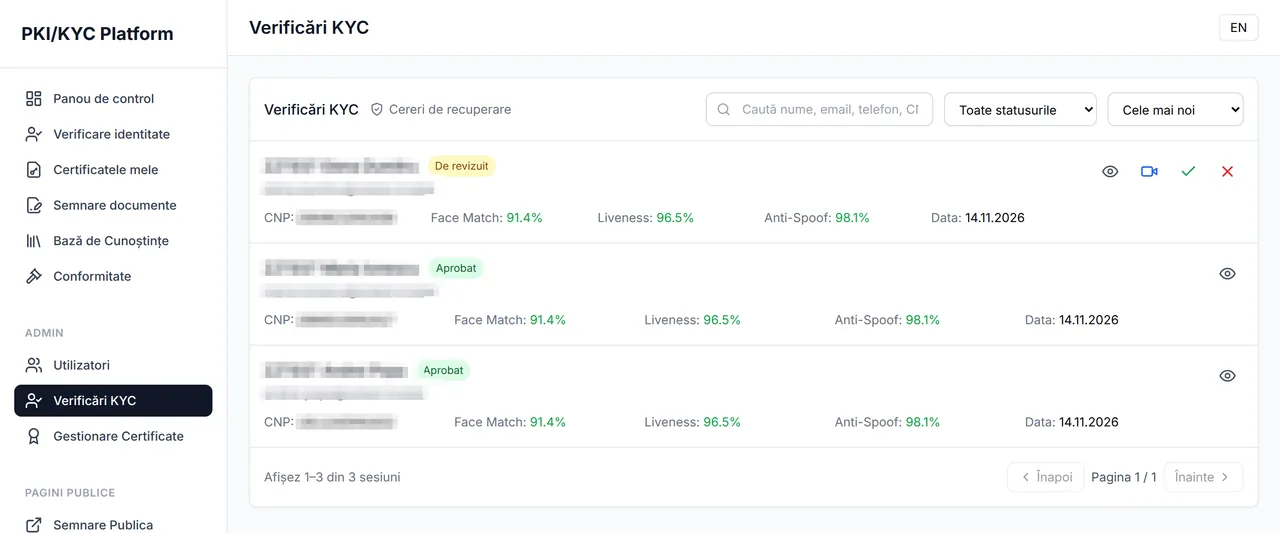
The document is read automatically: the name, the CNP verified by the check digit and the date of birth, and for the passport the MRZ area. The selfie is compared with the photo from the document and receives an anti-forgery score. The 'live person' proof is calculated on the person's phone, so it is an indication, and the operator makes the decision. They see the scores in the list and can call the person by video directly from the file.

List of identity verifications in CertaSign, with the scores of each file and the buttons for viewing, video call, approval and rejection, on masked test data

Without account

You sign from the phone

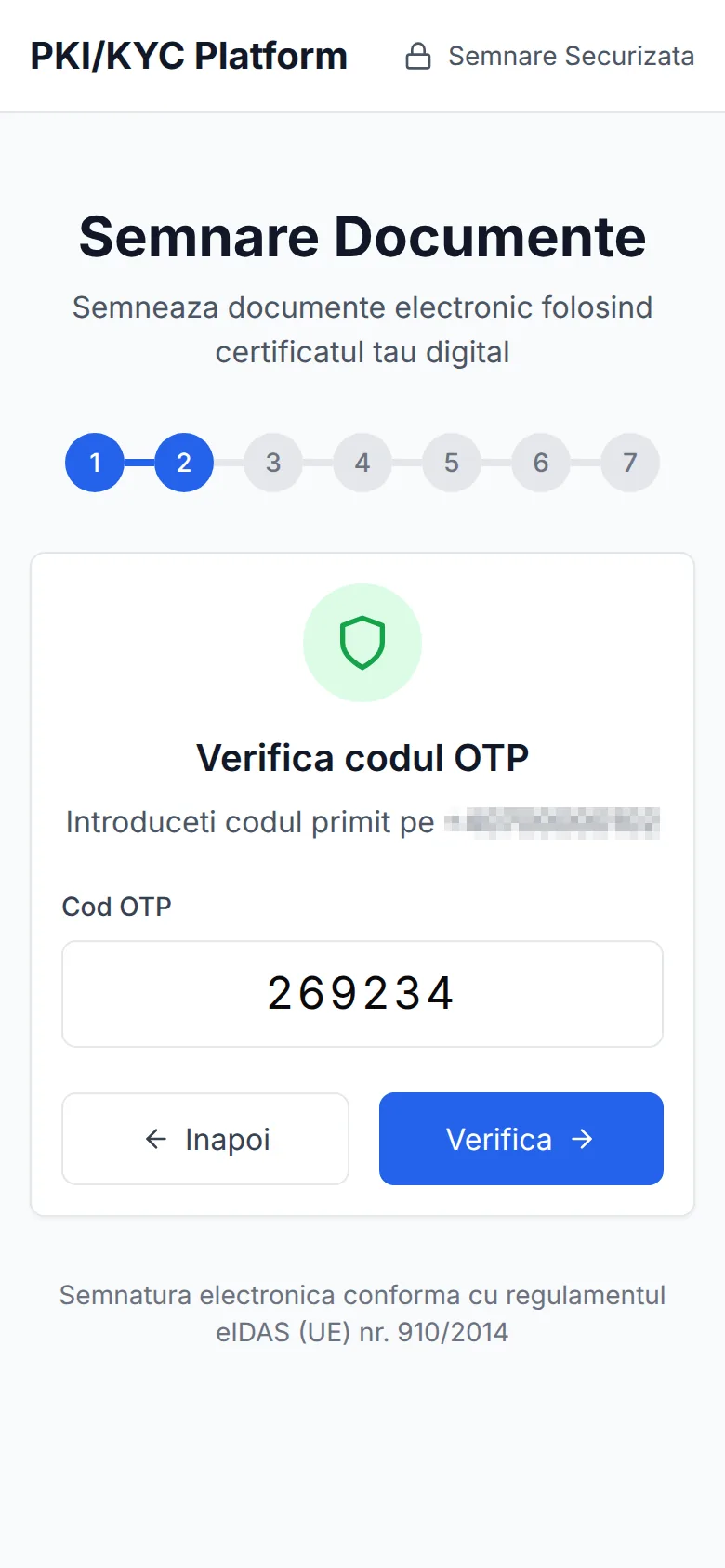
The person with verified identity and active certificate enters with the phone number and the code received by SMS or email. Uploads one or more PDFs, places the signature once for all, confirms with code and PIN and downloads the signed documents. The session lasts 72 hours.

Signing without an account in CertaSign, on the phone: the step of the code received by SMS

The certificates

All certificates issued by the company

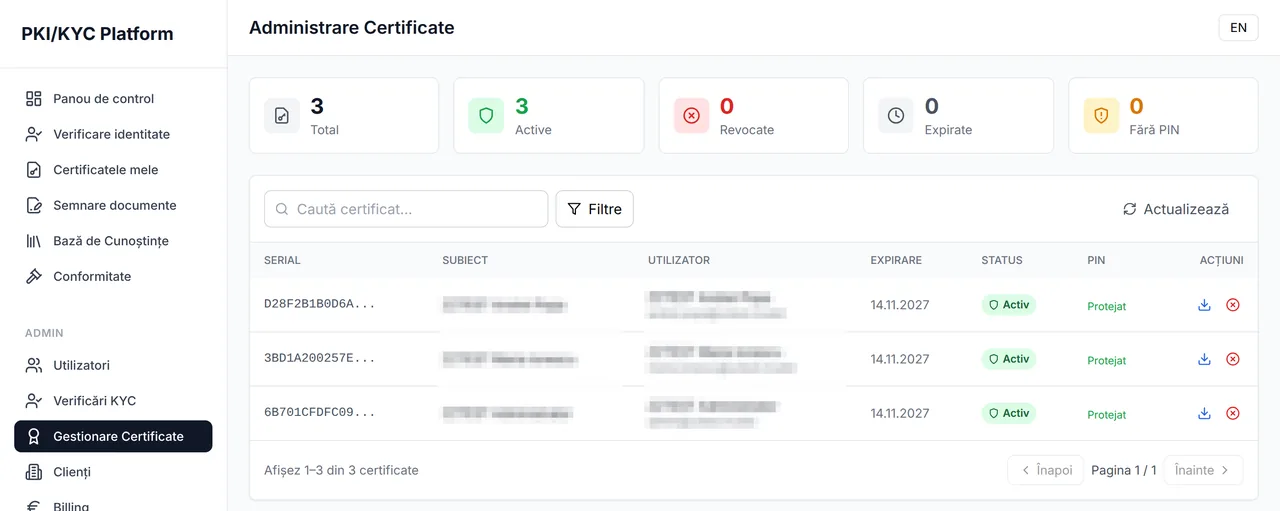
The certificate is issued for one year, with the RSA key generated in the HSM, and may carry the CNP or the document number, if the company chooses this. A person has a single active certificate. The administrator sees all certificates, with filters and statistics, and revokes any, with reason. Before expiry, the holder receives reminders by email, and renewal keeps the old signatures valid.

Certificate management in CertaSign: total, active, revoked and expired, with the expiry date of each, on masked test data

Sheets with multiple signatories

The training sheet, signed by each person in their own field

On a form with the signature fields prepared, such as the SSM training sheet, the trainee and the instructor sign each in their field, even on different days. The signatures already placed remain valid, and the first signatory can block modification of the rest of the document. When the application that generates the sheets sends a batch, up to 2,000 PDFs are signed in the background, after a single authorisation with code and PIN.

  • Named field for each signatory
  • Blocking the rest of the document
  • Batch of up to 2,000 PDFs
  • Resumption after a crash

PAdES levels

The signature level, chosen at signing

You choose the PAdES level: B-B, B-T with timestamp, B-LT with the revocation list placed in the PDF or B-LTA, with an archive timestamp that keeps the signature verifiable even after the certificate expires. The timestamp comes from an external public service, by default DigiCert. Signing in fields and bulk signing stop if the service does not respond, and when signing a PDF from the screen the document may come out at a lower level.

Signing a document in CertaSign, with the choice of PAdES level and the history of signed test documents

Client

WORK MANAGEMENT signs the SSM and PSI documentation with CertaSign

WORK MANAGEMENT S.R.L. uses FlexiDocs and CertaSign for the SSM and PSI documentation. It issues and manages its own advanced signature certificates, as an internal certification authority.

What the law says

What Law 214/2024 says and where you see it in CertaSign

The articles in Law 214/2024 on the use of electronic signature that state the value of the advanced signature, with the place in the application where it is seen.

Signature level
For the advanced signature, Law 214/2024 refers to the conditions in art. 26 of Regulation (EU) no. 910/2014 (art. 2). The qualified signature produces the same legal effects as the handwritten signature (art. 4 para. 1). CertaSign issues advanced signature and does not issue qualified signature.
When it has the effect of the handwritten signature
Any electronic signature produces legal effects and may be used as evidence in court (art. 3 para. 1). The document signed with an advanced signature has the effects of the handwritten signature when it is recognised by the person to whom it is opposed (art. 4 para. 5). It also has them when the parties have agreed this through a separate document, signed by hand or with a qualified signature, in which they confirm that they understand the risks and the burden of proof. Between professionals, that document may also be signed with an advanced signature. The case of the certificate issued by a public authority or by a qualified provider does not concern CertaSign certificates.
Closed electronic system
A private company may define a closed electronic system, with its own regulations (art. 6 para. 1). The document signed with an advanced signature, issued by the company and used in that system, has within it the effects of the handwritten signature (art. 4 para. 6). With those outside the system the general regime applies (art. 6 para. 3). In CertaSign, the terms accepted at enrolment remain on each person's account, with the version, IP address and time.
Validity of the certificate
The certificate for the advanced signature is valid for at most 2 years (art. 3 para. 4). CertaSign issues it for one year and sends reminders before expiry.
Documents signed after expiry
Expiry of the certificate does not affect the validity of the signed document (art. 3 para. 3). Upon renewal, CertaSign issues a new certificate, with a new key, and the old signatures remain valid through the timestamp.

How to start

First steps until you sign with CertaSign

  1. Request a presentation

    CertaSign does not have a trial instance. We show you, in a discussion with the team, identity verification, certificate issuance and signing.

  2. We install the company's authority

    We create the organisation, its certification authority, the token in the HSM and the administrator account, then link the company's SMS and email. The text of the terms that each person accepts is written in the company's name.

  3. People enrol

    Each receives the link by email, verifies their identity and chooses their PINs. Those who do not finish receive reminders. Then they sign from the application, from the phone or from the FlexiDocs flows.

How to buy

We set the price through a quote

CertaSign is not bought online. We set the price in the quote, according to the number of active certificates.

  1. You request a quote
  2. You receive the quote
  3. We install the company's authority
  4. People enrol

Request a quote

We send you the quote by email within at most two working days. If you wish, speak first with the team.