FlexiDocs, the document archive and document signing

From draft to the signed contract

The lawyer and the sales colleague correct the contract in Word, at the same time, directly from the browser. The client, who has no account, receives a link and a code on e-mail and signs from the phone. The signed PDF enters the contract file by itself, next to the original.

From 99 lei per month, excl. VAT.

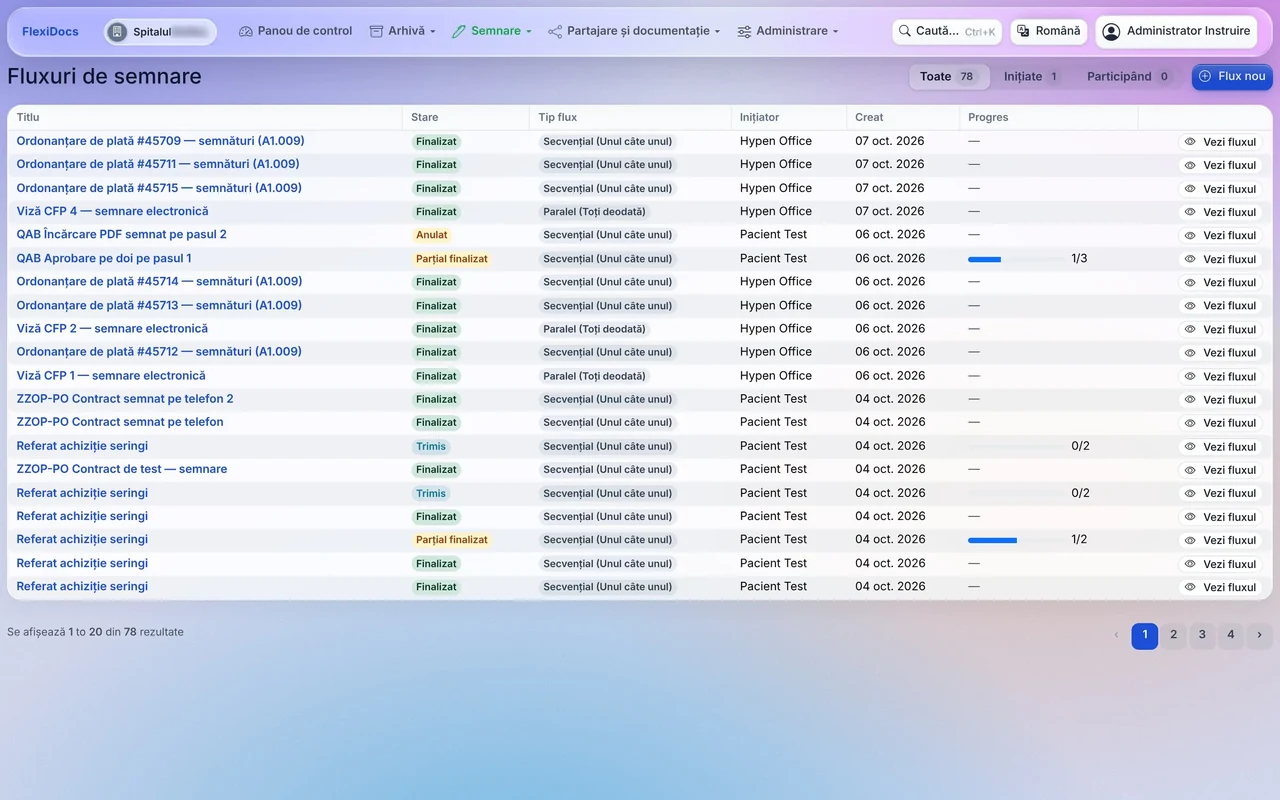
FlexiDocs: signing flows of a test organisation
The Office editor comes with FlexiDocsWord, Excel and PowerPoint open from the archive and are edited in the browser, by several colleagues at once.
Signatories without an accountThe client receives a link and a code on e-mail and signs from the browser, from the phone or from the computer.
Rights on each fileYou choose who views, who edits and who deletes. The rules also apply to search, download and via API.

A signing flow

How three people sign the same contract

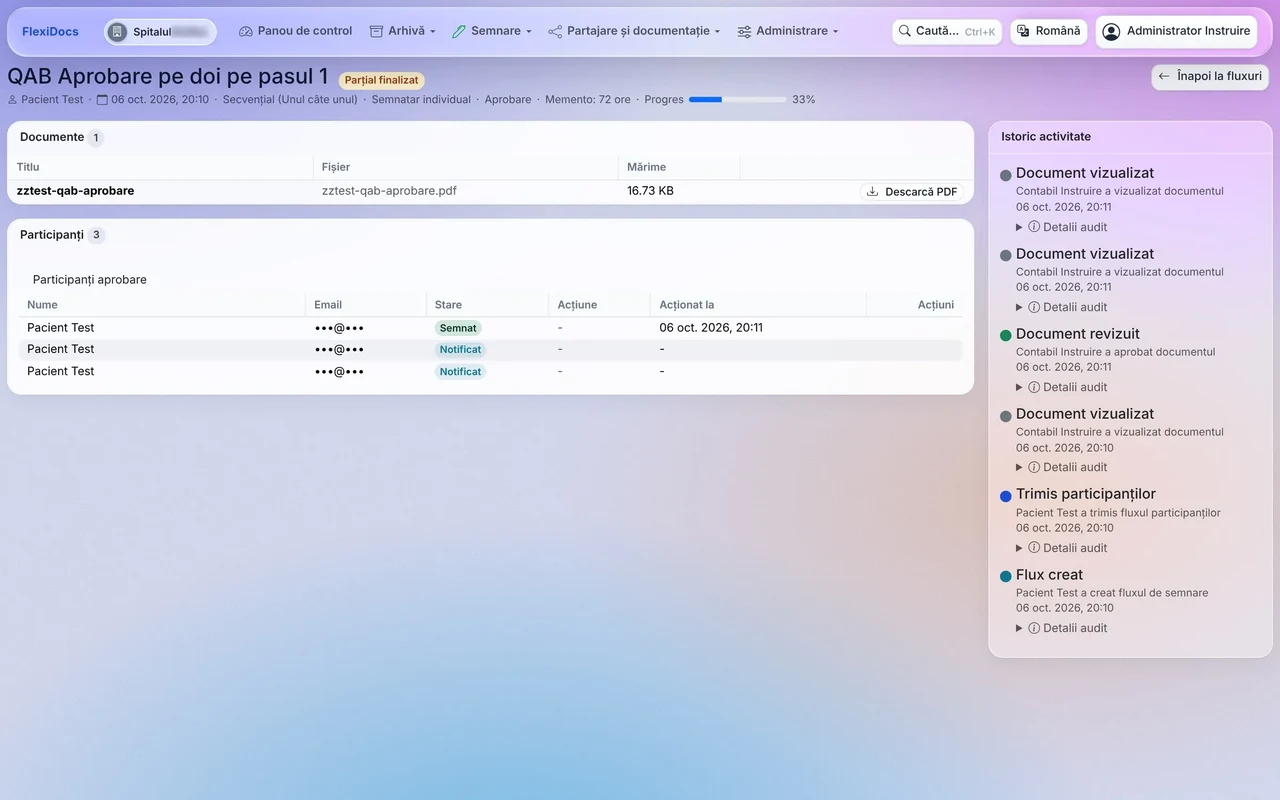
You send the contract only once. The director and the lawyer sign it in turn, then the client, who has no account, signs it from the phone. At the end, the signed PDF enters the archive, with the history of each step.

Those who have no account sign from a link, with a code received on e-mail.

The signed PDF enters the same file, next to the original.

A signing flow in FlexiDocs: the participants, the status of each and the history
A signing flow and its history, on test data.

Who it is for

What FlexiDocs solves for each person who works with documents

The question each person asks themselves and what they do in FlexiDocs to find the answer.

Business owner

Who has not signed yet and how long has the contract been waiting?

The flow shows the status of each signatory. Those who have not responded automatically receive a reminder after 24, 48, or 72 hours. If they still do not sign within the chosen time, the request passes to their substitute. On the control panel, you see the active flows and the signatures waiting for you.

Lawyer

How do I send the contract for signing to a client who has no account?

You add them to the flow with their name and e-mail address. The client receives a personal link, requests a verification code and signs from the browser. For each signatory you choose the signature type and place their box on the page. The flow history keeps who viewed, signed or rejected, with the IP and browser.

Accountant

How do I give the auditor the documents of the year?

You share the file via a link with password, expiry date and maximum number of accesses. The auditor views the file and downloads it as ZIP, without an account in the application. Each opening and download remains recorded, with the date and IP.

Secretariat of an institution

What number does the document receive and who approved it?

Each document automatically receives a unique number, of the form DOC-year-number, which restarts each year. You can reserve in advance up to 100 numbers on a chosen date. The approval request reaches a colleague, who approves or rejects with reason. The incoming-outgoing register of correspondence and retention periods are not in FlexiDocs.

Administrator

How do I ensure that each person sees only their own files?

On each file and document you choose who views, who edits and who deletes: everyone, only the owner, or certain people and departments. The rules pass to subfiles and apply in the list, in search, in download and via API. What a colleague did is exported to CSV.

Colleagues who write the documents

What is the latest version of the offer?

The Word or Excel document opens from the archive in the browser and you edit it at the same time, seeing who else is in it. Each save becomes a new version, and an old version opens from history.
Modules

All modules, grouped by work with documents

Grouped by who uses them. Each person sees only the actions allowed by their role and the files to which they have rights.

Archive: files and upload

The secretariat, the document manager, all colleagues

  • Folders A tree with any number of levels, in which you create, rename, move and delete folders. Before deletion you see how many subfolders and documents leave with the folder.
  • Upload The file enters the folder with title, description, tags and the fields of the document type.
  • Folders and entire archives You drag into the page a folder from the computer, with its subfolders, or a ZIP, RAR, 7z or TAR archive, which the server unpacks into folders. Rejected files appear in the summary.
  • Large files It uploads in chunks, and if the connection is interrupted, the upload resumes.
  • File types PDF, Word, Excel, PowerPoint, OpenDocument, images, CSV, TXT and ZIP. The real type is verified after the file content.
  • New version A file uploaded with a name that already exists in the folder becomes the next version of the document.
  • Favourites and colours Frequently used folders stay fixed in the sidebar. Folders and documents receive a colour, an icon or a tag.
  • List or thumbnails Sortable columns by name, date, size and type, or icons with the first page of the document. The choice remains with your account.
  • Moving, ZIP, archiving You move documents between folders, download a folder as ZIP with what you are allowed to see and mark a document as archived without deleting it.
  • Deletion The deleted document remains in the database, with who deleted it and when. Deletion is refused while the document is in an active signing workflow, and a deleted document is not restored from the screen.
  • The list updates itself When a colleague adds, moves or deletes something in the open folder, the list refreshes and you see who else is working in the same folder.

Document sheet: versions, metadata, numbers

The secretariat, the document manager, the administrator

  • The document card The details, preview of PDFs and images in the page and downloading the file.
  • Versions You upload a new version and open any old version of the document.
  • Document types The administrator defines types, for example contract, with their fields: text, number, date, email, web address, list. The fields can be mandatory, with default values and validation rules, and appear at upload.
  • Tags and nomenclatures Tags with suggestions while typing, merging two tags and lists of own values, reordered by dragging.
  • Registration number Each document receives a unique number per organisation, in the form DOC-year-number, which starts over each year.
  • Number reservation You reserve in advance up to 100 numbers on a chosen date and then upload the file to the reserved number. This is the numbering of documents in the archive; the incoming-outgoing register of correspondence is not in FlexiDocs.
  • Approval request You ask a colleague to approve a document. They approve with a comment or reject with a reason, and you receive an email.
  • Export The list of displayed documents and the history of a document, in CSV.

Search

All colleagues

  • Search in the archive By title, file name, tags and the fields of the document type. The text inside the documents is not included in the search.
  • Ctrl+K From any screen, a search palette takes you to the menu or to the archive search.
  • The folder by name When moving, reserving numbers or uploading, you choose the folder by typing part of its name.

Word, Excel and PowerPoint in the browser

Colleagues with editing rights; the editor comes with FlexiDocs

  • Opening in the browser The document opens from the archive directly in the editor, without downloading, and saving returns to FlexiDocs as a version. Those with only read rights open it for reading. On the phone it opens only for reading; on tablet and computer it is edited.
  • Simultaneous work Several colleagues edit the same document at the same time and see who else is in it.
  • Versions in the editor The version history is visible in the editor, with the option to revert to a previous version.
  • Save and “Save as” You save in place or save a copy in another folder, chosen from the editor.
  • New document A Word, Excel, PowerPoint document or an empty PDF, created directly in a folder. The “Office” page has “New” and “Open”.

Signing and approval workflows

The lawyer, the secretariat, the document manager

  • The “New workflow” assistant You choose documents from the archive or upload them on the spot, add participants, arrange the fields, check the summary and send. An unfinished workflow remains a draft and you resume it later.
  • Conversion to PDF Word, Excel documents and images placed in the workflow are automatically converted to PDF before signing.
  • One after another or all at once In the sequential workflow, each waits their turn, and the link does not allow anyone to pass before those before them.
  • Signatories and reviewers Each participant signs or approves. The signature type is chosen for each signatory.
  • Reviewers' rule A single rejection stops the workflow, the majority decides, or the reviewers only acknowledge.
  • Anyone in the organisation The request goes to all colleagues, and the first to sign completes the step.
  • Substitutes Up to 5 substitutes for a signatory. If they do not respond within the chosen time, between 1 and 168 hours, the request passes to the next.
  • Reminder Those who have not responded receive a reminder on their own after 24, 48 or 72 hours.
  • Fields on the page You place signature, initials, date and text fields on pages, for each participant.
  • Tracking and correction See the status of each participant, resend the request, replace a participant who has not acted yet or cancel the flow.
  • The signed PDF You download the signed document at the end or the current state, marked “DRAFT” as long as the flow is not completed. At the end, the signed PDF enters the document's file, next to the original.
  • List of flows All flows in a list, with the export of a flow to CSV.
  • The encrypted copies When sending the flow, copies of the documents in the flow are kept encrypted on the server. Encryption applies only to them, not to the entire archive.

The signatory's page, also for those without an account

Signatories from the company, clients and partners from outside

  • The invitation Each participant receives a personal link to the document by email.
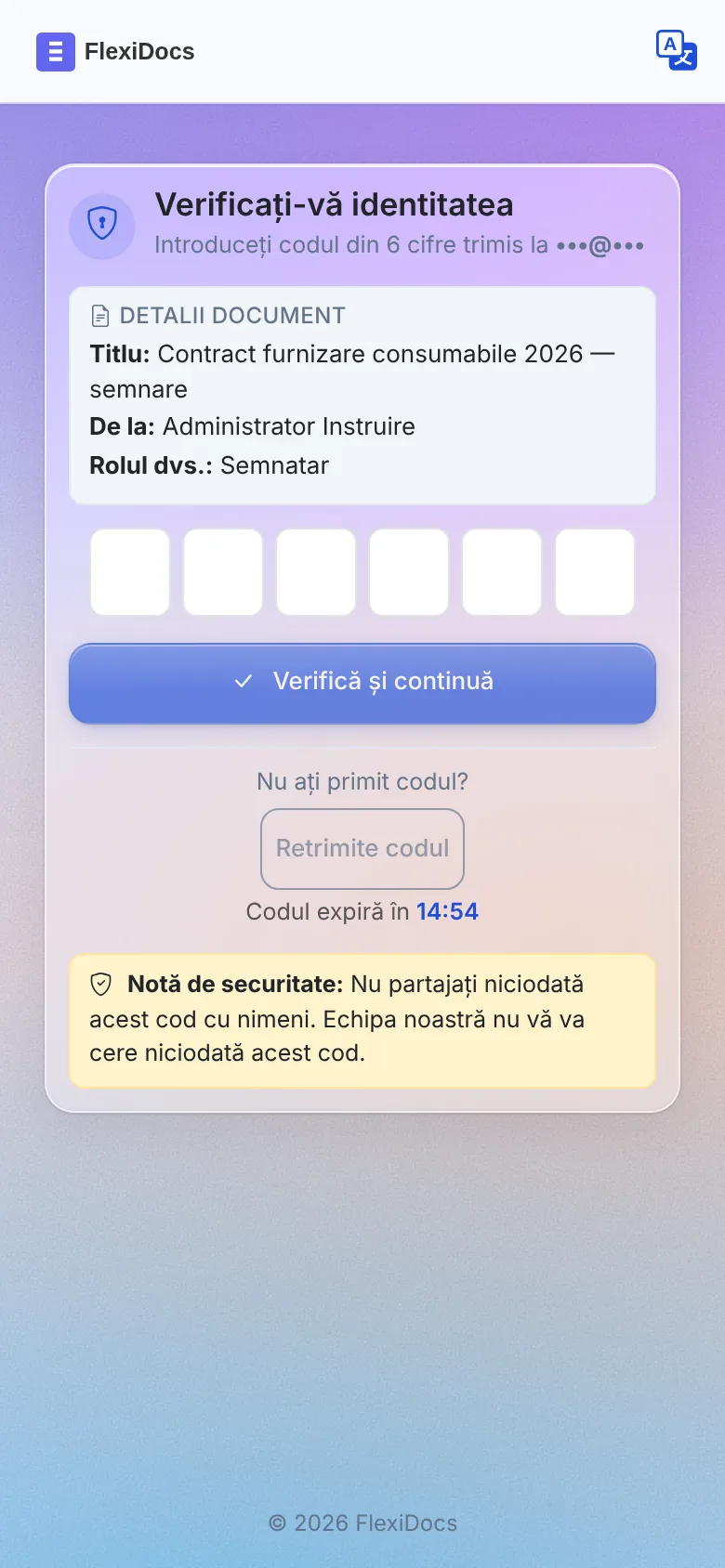
  • The verification code Anyone without an account requests a code by email and only then views, approves, rejects or signs. The code has 6 digits by default and is valid for 15 minutes.
  • The link with expiry An invitee's link expires after the set number of days. The reminder or resend renews it.
  • The drawing or the written name The signatory draws with the mouse or finger or writes their name. They can use the signature saved in their profile.
  • Approve or reject The reviewer approves with an optional comment or rejects with a reason of at least 10 characters, and the initiator is notified.
  • The signatory's copy Each participant downloads the document with the signatures so far.

Signature types

Signatories; the super administrator chooses which methods appear

  • The drawn signature The signature image or the written name is placed on the PDF in their box, with the signatory's name and the server's date and time. It is a simple electronic signature, without a certificate. The flow history keeps the IP, browser and verification code.
  • Advanced signature via CertaSign The signatory identifies themselves in CertaSign with a code on the phone, selects the certificate issued by CertaSign and confirms with PIN and code. The signed PDF comes from CertaSign, in PAdES format. It appears only if the organisation has CertaSign active; anyone without a certificate receives the enrolment link.
  • The USB token The signatory signs in the browser with the certificate on the token connected to their computer, through the bridge application installed on that computer. It also requires CertaSign active. The signature is qualified if the certificate on the token is qualified.
  • The institution's signing server The institution signs with its certificate on the central signing server (SignDesk), and the signatory only confirms. It requires the SignDesk server configured and CertaSign active. The signature is qualified if the certificate is qualified.
  • Signed in another programme The signatory downloads the PDF, signs it with their programme and certificate, for example in Adobe, then uploads it back into the flow.
  • Multiple documents When signing with a certificate, the documents of a flow are merged into a single signed PDF.
  • The certificate in history After signing with CertaSign, with the token or on SignDesk, the signatory's name, the certificate and the signature level remain in the flow history.
  • Active methods The super administrator chooses which methods appear in the assistant. The drawn signature and uploading a signed PDF are always available.

Sharing with colleagues and with those outside

Document manager, administrator, external recipient

  • With a colleague or with the entire organisation You give access to a document or a folder to a specific colleague or the entire organisation.
  • Link for someone outside With or without an expiry date, optional password, maximum number of accesses, view or download right and a message. The link can go directly to email.
  • The entire folder The recipient sees the entire folder and downloads it as ZIP.
  • Recipient's page Opens the link, enters the password if required, previews and downloads. Each access is recorded, with the date, IP and action.
  • Notification on access You receive an email when someone opens or downloads, if you enable the option in settings. It is off by default.
  • Resending and revocation You resend the link by email, see what you have shared and stop a link.
  • Sharing log The administrator sees all the organisation's shares, the others only their own. A link is deactivated with a written reason and can be reactivated, and the log is exported to CSV.
  • Default values Links go out by default with a term of 7 days, at most 5 downloads and a password of at least 8 characters. You can change them all.
  • The link follows the rights A link closes itself if the person who created it no longer has permission to see the document.

Permissions, logs and administration

Administrator, internal auditor

  • Roles Roles with fixed rights, among them the administrator, document manager, signatory, reviewer and viewer.
  • Rights on folder and document For viewing, editing and deletion you choose: everyone, only the owner, everyone except certain people or departments, or no one except them. The rules are inherited on subfolders and also apply to search, download, ZIP and API.
  • Limited user The signatory and reviewer see only what they have uploaded and the documents in their workflows. The viewer does not enter the signing workflows.
  • Workflow history Each workflow keeps who, what and when: created, sent, viewed, signed, approved, rejected, cancelled, escalated, reminder, participant replaced, signed document reloaded, with IP and browser.
  • A user's log The administrator exports to CSV what a colleague has done: uploads, openings, downloads, deletions and shares.
  • Email notifications Signing request, verification code, reminder, workflow completed or cancelled, approval request, sharing link, link access and new document in archive.
  • Control panel The documents, those from this month, active workflows, your pending signatures, workflows completed today, space used and recent activity.
  • Settings and visual identity The application name, the email server with a test message, the logo and the company's colours.
  • Experts' folders For tenders, the project manager's profile and each expert's, with CV, diplomas and recommendations, downloadable.
  • Guides and languages Interactive “First steps” guides for administrator, secretariat, signatory and user, plus guides on each workflow. The interface is in Romanian, English and French.

Links with other applications

The company's IT, integrators, Hypen applications

  • API Other programmes create and send workflows, add participants and fields, download the signed PDF and work with folders and documents. The API documentation is published in the application.
  • API keys Each person creates a personal key from their profile, and the administrator creates API clients for integrators without an account.
  • Webhooks On flow created, sent, concluded or cancelled and on each signing or rejection, FlexiDocs notifies the configured address, with HMAC signature.
  • The signed PDF untouched Via API, the PDF signed with certificate is given exactly as it came out, so that the signature remains valid.
  • Sharing via API The applications create and revoke sharing links and read their log.
  • From FlexiDocs, into Hypen One With Hypen One on subscription, you attach in Mail and in Messages a document from the archive, with your rights from FlexiDocs.
  • Hypen applications for institutions iConta, iHR and Urbex learn from FlexiDocs which signing methods the institution has and receive the signed PDF untouched. “Requested by” shows the person who started the signing.
  • The AI assistants An AI assistant browses and searches in the archive, reads the text of the documents, uploads, moves, deletes with confirmation and starts signing flows, with the rights of the person whose token it uses. Flows started this way use the drawn signature, CertaSign or reload. Scanned documents remain without text, because FlexiDocs does not do OCR.

In preparation: automatic verification of the signature on a PDF signed in another programme and reloaded. We announce it here after we test it on a hosted installation.

A working day

An ordinary day in a company that works in FlexiDocs

The times are indicative. Each step below is an action that the company’s people take in the application or that the application takes on its own.

  1. 08:30

    Control panel

    The administrator opens the panel and sees the active flows, the signatures waiting for him and the recent activity from the archive.

  2. 09:00

    The offer

    Two colleagues from sales work at the same time on the offer in Excel, from the browser. Each sees who else is in the document, and saving becomes the next version.

  3. 10:00

    The contract goes out for signing

    The lawyer starts a flow in turn: first the client, then the director. The contract from Word transforms itself into PDF, and each signatory receives their personal link by email.

  4. 11:30

    The client signs

    The client has no account. Opens the link on the phone, requests the verification code, receives it by email and signs with the finger.

  5. 13:00

    The documents of the day

    The secretariat drags into the page a folder from the computer, with its subfolders. Each document receives a registration number, and files with a name that already exists become new versions.

  6. 14:30

    Approval

    The secretariat asks the director for approval of an internal decision. The director approves it with a comment, and the secretariat receives an email.

  7. 15:30

    The auditor

    The accountant sends the auditor the year's file via a link with password, valid for 7 days. Each opening and download by the auditor remains recorded, with the date and IP.

  8. 16:00

    Reminder

    A supplier has not signed the contract sent by procurement since yesterday. 24 hours after the invitation, FlexiDocs automatically sends them a reminder.

  9. 17:00

    Signed contract

    The director signs last and the flow concludes. The signed PDF enters the contract's file, next to the original, and the lawyer receives an email.

Signing flows

In turn or all at once, with substitutes

The “New workflow” assistant takes you through documents, participants, fields and summary. For each signatory you choose the type of signature and up to 5 substitutes, to whom the request passes automatically if the signatory does not respond within the chosen time. Reviewers decide according to the flow rule: a rejection stops it, the majority decides or they only take note.

Creating a signing flow in FlexiDocs: the document, the participants, the settings and the verification

Signatories from outside

Signing without account

The client or partner receives a personal link by email, requests a verification code and only then sees the document. The code has by default 6 digits and is valid for 15 minutes. Signs from the browser, with the finger or with the mouse.

Page of a guest without an account, on the phone: the verification code received by email

Editing in the browser

The Office editor comes with FlexiDocs

Word, Excel and PowerPoint open from the archive directly in the browser, in the OnlyOffice editor. Several colleagues work at once, and each save becomes a new version, with return to the old ones. On the phone the document opens only for reading.

A test addendum opened in the FlexiDocs browser editor

The signature

Drawn, advanced or qualified

The drawn signature and reloading of a PDF signed in another programme work anytime. The advanced signature comes via CertaSign. Qualified is the signature with the USB token or on the institution's signing server, when the certificate used is qualified.

  • Drawn
  • Advanced via CertaSign
  • USB token
  • SignDesk server
  • Signed PDF reloaded

Archive

Each document, with its versions and number

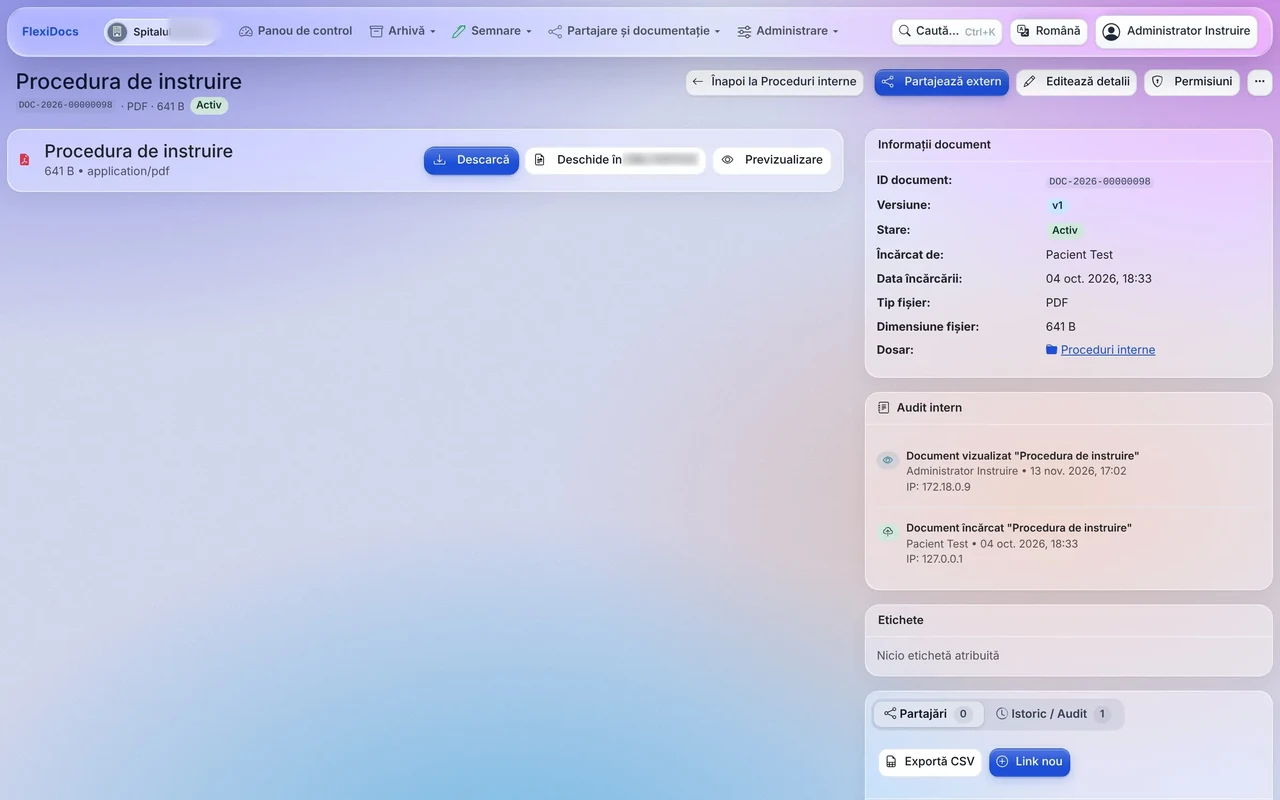
Documents stay in folders, with versions, tags and their type fields. Each receives a number of the form DOC-year-number, and the registry office can reserve numbers in advance. PDFs and images are previewed on the page, and any old version can be reopened.

A document in the FlexiDocs archive, with its versions and history

Electronic signature law

What value each signature has and where you choose it in FlexiDocs

Law no. 214/2024 establishes the effects of each type of electronic signature. Next to each type we have written the method in FlexiDocs that produces it.

Any electronic signature has legal effects
Law no. 214/2024 says that all types of electronic signature produce legal effects and can be used as evidence in court (art. 3 para. (1)). The expiry of the certificate after signing does not affect the signed document (art. 3 para. (3)). In FlexiDocs, the signed PDF remains in the archive, and the flow history keeps who signed, when, from what IP and with what browser.
Qualified signature
Qualified electronic signature produces the same legal effects as a handwritten signature (art. 4 para. (1)). A document issued by a public institution and signed with a qualified signature or qualified seal is assimilated to an authentic document (art. 4 para. (2)). In FlexiDocs, the signature is qualified when the signatory uses a qualified certificate: on the USB token, on the institution's signing server or in their programme, with the PDF then reloaded into the flow.
Advanced signature
Advanced electronic signature has the effects of a handwritten signature when the certificate is issued by a public authority or by a qualified provider, when the person to whom the document is opposed recognises it, or when the parties have agreed this by a separate document (art. 4 para. (5)). Between professionals, that document can also be signed with an advanced signature. In FlexiDocs, the advanced signature comes through CertaSign, with certificates issued by the company's certification authority.
The drawn signature
The signature drawn in FlexiDocs is a simple electronic signature. The law gives it the effects of a handwritten signature for acts with a value below half the gross minimum wage, when it is recognised by the person to whom it is opposed, or when two professional parties have agreed this by a document signed by hand or with a qualified signature (art. 4 para. (9)).

How to start

First steps until you work in FlexiDocs

  1. Try it

    The «Try it now» button opens free of charge, without a card, a FlexiDocs copy with test data, on the chosen role: administrator, accountant, human resources or employee. Test data is restored after each use.

  2. Choose signing

    The drawn signature and uploading a PDF signed in another programme work from the start. The advanced signature requires CertaSign, which we install based on a quote. The USB token requires the bridge application on the signatory's computer.

  3. Bring the documents

    Drag into the page the folders from the computer or the ZIP, RAR, 7z or TAR archives. Subfolders are kept, and the «First steps» guides show each role where to start.

The “Company” package

Documents, accounting and the employee portal

Besides FlexiDocs, the package brings OmniGest ERP, for invoicing and accounting, and Self-Service Angajat, where employees see their payslip, leave balance and timesheet. Hypen One is included: the account with which each person enters all applications, with Mail and Messages from which you attach documents from the archive.

  • FlexiDocs
  • Self-Service Employee
  • OmniGest ERP
  • Small company299 lei / monthinstead of 347 lei, bought separately
  • Medium company699 lei / monthinstead of 847 lei, bought separately

Monthly prices, excl. VAT.

Subscription

The price, by company size

The application is hosted by us, with the Office editor included in the browser. A subscription keeps the archive of a single organisation. The small firm and the medium firm pay monthly or annually, by card. For the large firm we provide a quote. The advanced signature also requires CertaSign, which is sold on quote.

Small company

99 lei / month

excl. VAT · 119.79 lei incl. 21% VAT

  • Up to 5 users
  • Up to 25 employees
Buy

Medium company

249 lei / month

excl. VAT · 301.29 lei incl. 21% VAT

  • Up to 20 users
  • Up to 100 employees
Buy

Large company

On quote

  • We set the size together
Request a quote

Monthly prices, excl. VAT. Paid annually, a year costs as much as 10 months.

Buy the subscription online

You see the final price and pay by card. The platform is installed after payment. If you wish, try the applications first, free of charge, on test data.