iConta, public institution accounting

From the statement of need to FOREXEBUG reporting

The head of department writes the statement of need. When the expenditure starts, iConta reserves the amount on the BVC line only if credit is still available. The person responsible for CFP approval approves the commitment in the application, and the approval goes into the register with a number and date. At the end of the month, the chief accountant generates the trial balance for FOREXEBUG as an XML file validated against the official schema.

The iConta dashboard, opened by an accountant: upcoming tax deadlines, forms to generate and submit, and the day’s actions
Reservation only within the available creditThe amount is reserved on the BVC line before the commitment is made. When the credit is not enough, the reservation is stopped, even if two people make commitments at the same time.
CFP approval, with a register numberThe approval or reasoned refusal goes into the approvals register. The person who initiated the operation cannot approve it.
In production at Buftea HospitaliConta has been running at the Buftea Obstetrics and Gynaecology Hospital since June 2026.

A public expenditure

The path of an expenditure, from the statement of need to payment

The approved statement of need starts the expenditure, and the amount is reserved on the BVC line. The legal commitment receives CFP approval. The receipt and the invoice lead to liquidation, then the payment authorisation goes into the payment order to the Treasury.

The amount is reserved only while there is credit left on the BVC line.

The payment authorisation cannot exceed the amount liquidated as “approved for payment”.

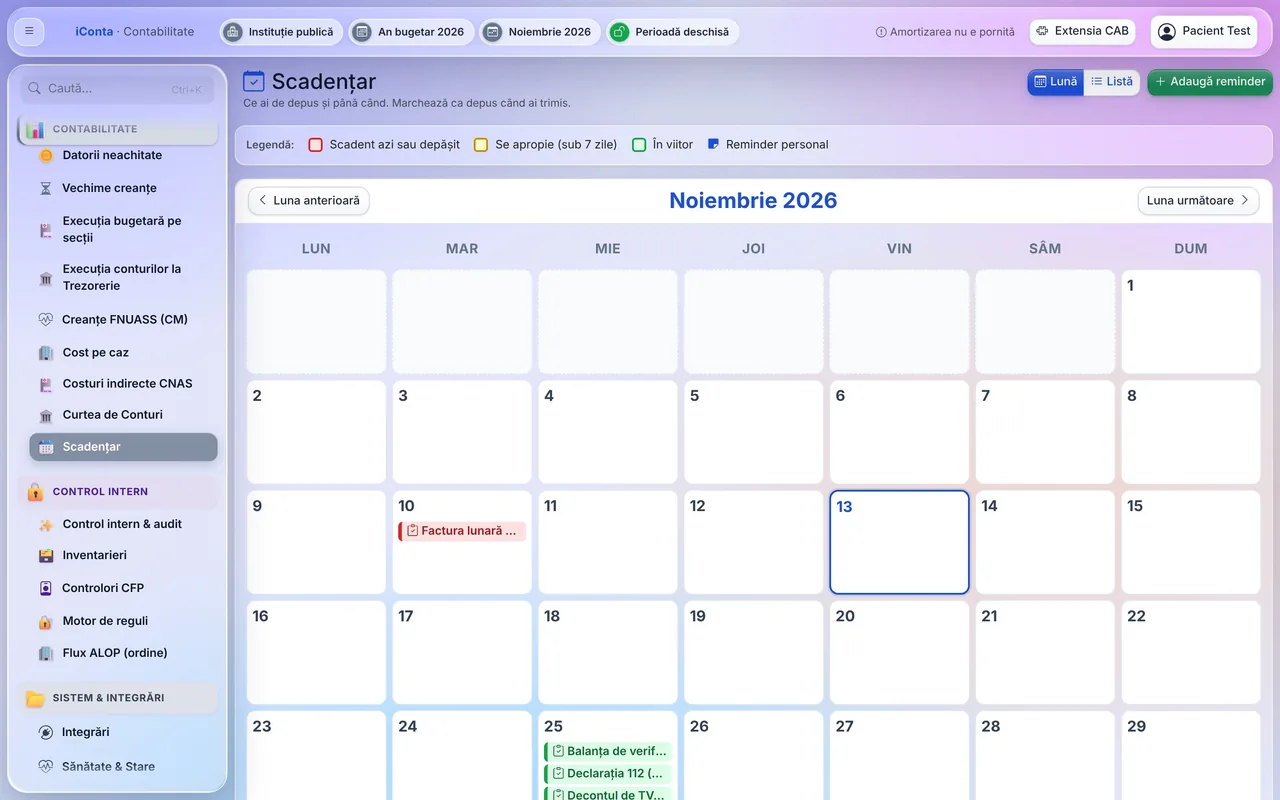
The iConta deadline calendar for November 2026, with deadlines colour-coded by how close they are
The deadline calendar in iConta, with the month’s deadlines and personal reminders.

Who it is for

What iConta solves for management, accounting, CFP and procurement

The question each of them asks and what they do in iConta to find the answer.

The manager, the authorising officer

How much more can we commit, and what is waiting for my approval?

The executive dashboard shows the available budget, the commitments, the suppliers with payments due and the documents awaiting CFP approval. Statements of need and substantiation documents reach you for approval, and a refusal from you cancels the reservation of the amount.

Finance and accounting director

How much of the budget has been executed, for each source and each department?

On each BVC line you see the committed but unpaid amount, the actual spending and the available balance. The statement of committed expenditure execution, the execution by department and the statement of outstanding debts can be exported to PDF and Excel.

The chief accountant

What is blocking the FOREXEBUG forms this month?

The repair screens show accounts with turnover but no funding source, accounts not linked to the FOREXEBUG nomenclature and partners with no sector. The records audit checks the period on six levels, and each finding leads to the screen where it is fixed.

The person granting CFP approval

Which operations do I need to approve, and what have I approved so far?

The CFP map lists the operations subject to approval at the institution, each with its legal basis. The decision is given in the application, as approval or a reasoned refusal, and stays in the approvals register with a number and date. Whoever initiated the operation cannot approve it.

The procurement department

Which procedure does the contract fall under, and how much is left of the framework agreement?

On registration, the contract is assigned to a procedure according to the thresholds valid on its date, and above the direct award threshold the application asks for the SEAP notice number. The framework agreement sheet shows consumption, and a subsequent contract above the remaining quantity is refused.

Storekeeper

Which batches are expiring, and which assets have not been labelled yet?

The stock register shows expired batches and those expiring within 30 days, and the consumption note issues the batch that expires first. The assets panel counts what needs labelling or locating and the overdue handovers.

Modules

All modules, grouped by the work of the finance and accounting office

Grouped by who uses them. Budget, ALOP, CFP, treasury, accounting and assets work for any public institution, including a town hall. The revenue modules are built for hospitals: local taxes and fees are not kept in iConta.

Statements of need

Departments, procurement, the chief accountant, the authorising officer

  • The statement of need, step by step The requester chooses the department, writes the subject and the justification and adds the products or services, with CPV code and estimated value. The application calculates the total.
  • The department’s statement and the procurement statement The department makes its statement of need on the hospital’s template, without prices or CPV codes. Procurement takes it over into a procurement statement, and only that one starts the expenditure.
  • Endorsement and approval The chief accountant chooses the funding source and endorses it. The authorising officer approves or rejects it with a written reason, and the decision reaches the requester. Neither the author nor the person who endorsed it can approve it.
  • Corrections, with history Any field and any line can be corrected even after registration. Every change stays in the log, with the old value.
  • Statements of need from other applications Employees create their statement of need in Self-Service and track its status, and statements written in iPortal go into the same register, without duplicates. Approval stays in iConta.
  • The PDF and the substantiation note The statement of need and the expenditure substantiation note are downloaded as PDF, using the institution’s template. The administrator edits the templates, with versions and preview.
  • The register of statements of need All statements of need, with filters and export. On each one you see the estimated, reserved and contracted amounts and the amount liquidated from invoices.

Public procurement

The procurement department

  • Contracts and orders On registration, the value is assigned to a procedure according to the thresholds valid on the contract date. Above the direct award threshold, the application asks for the SEAP notice number.
  • The order from the statement of need The order takes over the lines of the approved statement of need, with the CPV codes, and goes through the same threshold check.
  • The payment term Accounting enters the payment term on each contract, including those brought over from the previous software.
  • The annual public procurement programme The PAAP is drawn up by hand or generated from approved statements of need, from the year’s contracts or from last year’s consumption. It is checked against the budget, and approval freezes it. The print page has the CPV column and totals per CPV code.
  • Previous years’ PAAPs The plans brought over from the previous software, for consultation, with search by item.
  • Framework agreements and subsequent contracts The framework agreement is registered with the products, unit price and quantities, and its sheet shows consumption, monthly payments and invoicing. For a subsequent contract, the price comes from the agreement, and a quantity above what remains is refused. A registered agreement cannot be cancelled or corrected from the screen.
  • Addenda Each contract amendment has its legal basis and shows how much of the amendment ceiling has been used. An addendum above the ceiling is refused, with the remaining amount shown. The addendum does not have a PDF document yet, and for town halls the ceiling is calculated on the lower threshold for now.
  • The contract found from other screens The storekeeper, at the NIR, and the accountant, at the invoice, find the contract or order without procurement rights.
  • Reports for audit Contract payments over a period, in PDF, and the public procurement statement for the chosen year, in Excel.

The income and expenditure budget

The finance director, the chief accountant

  • The BVC with its execution The budget on the BVC template, with commitment credits, budget credits and quarters. On each line you see the committed but unpaid amount, the actual spending and the available balance, with filters by source and by budget article.
  • The available balance, from any screen The F8 key opens the window that shows how much credit is still free on a line.
  • Budget amendment The amendment proposal has the act, the lines and the old and new values. It goes through CFP approval and final approval, and only the final approval applies it to the budget lines.
  • Credit transfers Moves credits from one line to another, only within the available balance.
  • New budget line A wizard adds the indicator, with the source, classifications and credits.
  • The statement of committed expenditure execution At a given date, cumulative from 1 January, for all sources or for one: approved credits, budget and legal commitments, payments and the balance still to be paid, in PDF and Excel.
  • Execution by department The month’s expenditure by department, source and article, in PDF and Excel, plus the XML file for the EXBUGET application.
  • Account execution at the Treasury The statement in the form received from the Treasury. Opened credits are entered by hand.
  • Funding contracts The institution’s sources of money: the CAS contract, decisions, subsidies and projects, with addenda that keep the value history.
  • The budget sector It is chosen from the official nomenclature, for example 02 for an institution funded from the local budget. The official forms depend on it.
  • The printed budget The budget with its execution, in PDF and Excel, in landscape, with the institution’s letterhead. The sheet of each funding source shows its plan and accounts.

Committing expenditure (ALOP)

The specialist department, accounting, the CAB officer, the authorising officer

  • An expenditure from start to finish A step-by-step wizard: the statement of need, the budget line and amount, the commitment type and confirmation. The budget credit and the commitment credit are reserved on the line, and the reservation is stopped when the credit is not enough, even if two people are working at the same time.
  • Starting without a statement of need It requires a written reason and appears in the “ALOP order deviations” report, alongside commitments made after the invoice or after signing.
  • The expenditure sheet The path of an expenditure on one page: the substantiation document, the commitment, the approvals, receipts, liquidations, payment authorisations and payments.
  • The substantiation document It goes, in order, to the department, the CAB officer and the authorising officer. A refusal by the authorising officer cancels the reservation.
  • The CAB commitment code The code received from the Ministry of Finance CAB application is entered on the substantiation document, from the sheet or from the payment screen, where its absence stops the payment.
  • Revising the reservation The reserved amount is changed through a revision that goes through the same sign-offs and the authorising officer’s approval.
  • December documents In the first 3 working days, the CAB officer proposes the revision that enters in CAB the document drawn up in December for the following year.
  • Signed contract The copy signed on paper is attached, with the signature date, or it is sent for electronic signature. Without it, the payment authorisation is blocked.
  • Closing the commitment The commitment is brought down to what has been executed, on an attached act, and the remaining credit is released after the signatures.
  • NOTAFD The substantiation document comes out as an XML file of the MF form, validated against the official schema, and as a pre-filled smart PDF, to be signed in Adobe. The accountant submits it.

Preventive financial control

The persons designated for CFP, the authorising officer, the chief accountant

  • Approval on the legal commitment Approval or reasoned refusal, with a register number. Whoever initiated the operation cannot approve it, and approval cannot be requested before the substantiation document is signed.
  • Approval on the payment authorisation Approval or reasoned refusal on each payment authorisation, in the approvals register.
  • Decision on own responsibility After a refusal, the authorising officer can decide on their own responsibility, with the act attached. The notifications that follow are recorded.
  • Approval on the consumption note The consumption note and the food list are printed with the CFP approval given in the application.
  • The CFP map The list of operations subject to approval at the institution. The chief accountant adds or removes items, each with its written basis and a trace in the log.
  • The approvals register All approvals given or refused, to read and export.
  • Controllers and CAB officers Appointing, changing and revoking CFP controllers, in-house or delegated, and the persons who sign the CAB box.
  • Signing the approval With FlexiDocs, the controller signs the approval document electronically. The legal approval remains the entry in the register.

Receipt, liquidation and payment authorisation

Accounting, stores, the acceptance committee

  • Receipt against the commitment The receipt of goods or services is recorded against the commitment or on the spot, from the liquidation or from the invoice, with the same checks.
  • The service acceptance report A PDF to be signed by the committee, a supporting document for the liquidation.
  • NIRs without a commitment Receipts made by the store are linked to the commitment later, in 3 steps, or unlinked as long as they are not liquidated.
  • The receipt entered in CAB The CAB officer confirms that they have entered the receipt in the MF application and attaches the screenshots from there to the substantiation document.
  • Liquidation and “approved for payment” Liquidation is done against the receipt, without exceeding what was received. The “approved for payment” mark is given together with the liquidation or later. A supplier’s invoiced receipts are liquidated all at once.
  • The note determining the amount When you liquidate an amount other than the remainder in the document, including zero, the note is drawn up, printed and sent for signature.
  • Payment authorisation The form has the 5 signature boxes and can be split across several sources. The amount cannot exceed what was liquidated as “approved for payment”. Several expenditures for the same supplier go into a single payment authorisation.
  • Payroll payment authorisation From the payroll received from iHR: liquidation by article and payment authorisations by beneficiary, which then go into the multiple payment order.
  • ORDNT and A1.009 The payment authorisation comes out as XML validated against the MF schema, refused if the beneficiary’s details are missing, as a pre-filled smart PDF and as a printable A1.009 form, with the signature boxes.
  • Signing the payment authorisation With FlexiDocs, the A1.009 form goes out for signature in the order of the boxes, and each signatory signs from the application when their turn comes.
  • Remaining to authorise How much can still be authorised for payment today for each supplier, with export, next to the payment authorisation register.

Payment, treasury and cash office

Treasury, the cashier, accounting

  • The multiple payment order The OPs are made from the approved payment authorisations and gathered into an OPM. Missing data, from IBAN and CUI to the commitment code, is filled in on the spot.
  • The F1129 file (OPME) The XML of the electronic multiple payment order, with the control sum, validated against the MF schema, plus the pre-filled smart PDF. The treasury officer signs and submits it.
  • Corrections and cancellations As long as the OPM has not been submitted, you remove or add OPs and change the payer or the date. An OP is cancelled with a reason, and one within an OPM becomes “rejected by the Treasury”.
  • OPME settings The institution decides whether an OP without a commitment code is blocked. By default, it is blocked.
  • Payment against the payment authorisation Only in the current budget year and from a treasury account; another account requires a written basis, kept on the payment. The payment stays a draft until the checks pass.
  • Bank statement It is loaded from CSV, MT940 or OFX or entered by hand. The balances are checked, and the same statement loaded again does not duplicate the entries.
  • Statement matching OPs are matched automatically, then each line is matched, ignored or reopened. Lines receive the source, the classification and the invoices settled. A payment in the statement without an OP gets one, pre-filled.
  • Refused payments and reversals A refused payment is redone on the same payment authorisation. Payments and cash operations are cancelled by an offsetting document. Payments sent without an accounting entry are reconciled later.
  • Transfers and donations Money in transit between accounts is confirmed or cancelled. Donations in cash or in kind have their accounts proposed from the settings.
  • The bank register and reports The bank register by account and period, with the differences from the statement, the statement summary, the allocations to invoices and the advances given to employees (account 542).
  • Cash desk The cashier collects and pays in cash, opens and closes the cash day and issues the cash receipt, with mandatory series and number. The cash book shows discrepancies. Payment against a payment authorisation respects the daily ceiling per beneficiary, calculated cumulatively.
  • Travel expense claims The travel order, the advance, the expense claim with the proposed daily allowance, the settlement and the unjustified advance at year end, each with its own entry. The daily allowance, accommodation and thresholds are configured per institution.

Invoices, e-Factura and suppliers

Accounting, stores

  • Invoices received from SPV After connecting to ANAF, supplier invoices are brought in from SPV every hour or on demand, with ZIP, XML and PDF. Each one is recorded as a payable with one click, only once.
  • Supplier payables The payables register, with ageing and due dates. Each payable shows whether the order, the receipt and the invoice match.
  • The received invoice It is allocated to the orders and contracts of the same CUI, with the order lines and the proposed account coding per item. As long as it is unpaid, it can be split across sources and cost centres.
  • The supplier sheet and scheduled payment The balance, invoices and payments. The payment is scheduled from here and made in treasury. A payable without a receipt is linked to its receipt later.
  • The issued invoice Step by step, with a check of VAT exemptions. It is reversed with a credit note or cancelled if it has not gone to SPV. The sales journal is built from the issued invoices.
  • Sending to SPV The issued invoice is checked locally and uploaded to ANAF, and its status is checked automatically every 30 minutes. The XML and the ANAF signature stay on the invoice. The local check covers only some of the national rules, and the installation starts on the ANAF test environment.
  • Connecting to ANAF The test or production environment, the CIF, the certificate and the “Connect to ANAF” button.
  • Contractors’ work statements The work statement confirmed in iHR arrives with its PDF and annexes and is linked to the supplier’s invoice, as proof of the service.
  • The partner register Suppliers, customers, funders and health insurance funds. A blocked partner can no longer be invoiced or paid.
  • Outstanding debts The statement of outstanding debts by category, monthly, quarterly or annually, with the ageing of supplier debts, in PDF and Excel.

Hospital revenue and costs

The revenue accountant, the chief accountant, the manager

  • Receivables and CAS settlements In three columns: reported, validated and settled.
  • Invoices to CAS The settlement invoice issued in iPortal becomes a receivable and revenue, and the SIUI number is then linked to it. Without iPortal, the invoice is recorded directly in iConta.
  • Settlement reconciliation Validated, settled and rejected amounts are reconciled per settlement, with the adjustment in the accounts. With iPortal, the reconciliation comes from iPortal.
  • Receipts Collection against a receivable, step by step. Cash receipts issued or reversed at the iPortal cash desk come in automatically as collections.
  • Recoveries from previous years Amounts recovered from previous years’ expenditure, under title 85.
  • Receivables ageing By due date, with detail by customer and by CAS settlement, in PDF and Excel.
  • Sick leave to be recovered Recovery files submitted from iHR appear as FNUASS receivables, with ageing, and the collection is linked from the bank statement.
  • Cost per case By department and by type of activity: materials consumed, allocated salaries and overheads by floor area, set against the settled revenue. Floor areas, overheads and allocation keys are configurable. With Hypen One and iPortal, the monthly summary reaches the statistics in iPortal.
  • CNAS indirect costs Cost centres, allocation dictionaries and the monthly run, with the list of blockers, then filling in the official .xlsm template, with its formulas. The hospital fills in the table of major consumers and the allocation markings.

Accounting

The accountant, the chief accountant, the auditor

  • Journal entry The date, the justification and the debit and credit lines, with preview. The entry is not posted without a supporting document or if debit differs from credit.
  • Entries to post Drafts coming from the other modules, grouped by source module, with the reason they cannot be posted yet.
  • Reversal A posted entry is reversed only once, in red. The entry for a stock document is corrected from the stock document, so that the stock stays correct. Only drafts can be deleted.
  • Item account coding For each item purchased, accounting confirms the expense account, the budget article and the cost centre. Only what has been confirmed is proposed on the received invoice.
  • The trial balance For any interval in the financial year: opening balances, turnover, total amounts and closing balances, in CSV and PDF.
  • The F1102 analytical trial balance By funding source, functional and economic classification and sector, in PDF, Excel and schema-validated XML. If the CUI or the budget sector is missing, the export stops and shows what needs to be filled in.
  • The general ledger and account card The card of any account, with the balance after each movement. The PDF for a whole year is prepared in the background.
  • The journal register Posted entries in chronological order, numbered, with total turnover, in PDF in the register’s format (code 14-1-1).
  • The inventory register It is generated from the trial balance at the stocktaking date, for each account in classes 1–5. The accountant enters the inventory value and the cause of the differences. Once finalised, it can no longer be changed.
  • The chart of accounts and nomenclatures The chart of accounts, the budget classification and the funding sources are added to and deactivated, without deletion, with a trace in the log. A missing account is added from the form you are working in.
  • Document series Series and counters per document type, with history and a default series per type.
  • Fixes before reporting Screens that show what is blocking the FOREXEBUG forms: accounts with turnover but no source, accounts not linked to the FOREXEBUG nomenclature, partners with no sector for Annex 40, treasury accounts without an IBAN. Every correction stays in the log.
  • Registers from the previous software Migrated sundry expenses, collections and payments can be consulted, with the invoices they settled.
  • Month-end closing Expense and revenue accounts are closed into 121 through a generated entry. After closing, the month accepts only corrections. A month with no movement at all in classes 6 and 7 cannot be closed from the screen.
  • Year-end closing and the new financial year The patrimonial result is transferred to the result carried forward, for each source and classification, after all months are closed. A second closing of the same year is refused. The new financial year starts with the balances carried over, the carry-over entry, the 12 periods and the list of credit reservations that ended on 31 December.

Stocks and storerooms

Storekeepers, warehouse staff, accounting

  • The stock register Stock by store, item, batch and expiry date, at weighted average cost, with expired batches and those expiring within 30 days.
  • The NIR The supplier and the invoice, the items with batch and expiry, the prices, the confirmation. It can take over the lines of the received invoice. The receipt makes the 30x = 408 entry, closed against 401 when the invoice arrives.
  • The printed NIR On form 14-3-1A, with the institution’s letterhead, the statement that it replaces the delivery note, and three signature boxes.
  • The consumption note The batch that expires first is issued first. A refusal for insufficient stock or an expired batch is explained, and the 602 = 30x entry is made together with the note. An applied consumption note is reversed, with the batches brought back and the entry inverted.
  • Transfer, return, write-off A transfer between stores keeps the batch. A return requires a reason. A write-off, including of expired batches, has a committee and a destruction report.
  • Quarantine A batch is put into or taken out of quarantine, and the write-off starts from there, pre-filled.
  • Delivery notes Issued directly or from an invoice, in PDF, and the invoice is generated from the delivery note.
  • Items, stores, storekeepers The materials nomenclature, with a search that also finds items without diacritics. Each store must have a storekeeper, and a single decision appoints one person to several stores.
  • Stock levels Minimum and maximum levels per item and store, with the list of items below threshold. The application proposes thresholds from consumption, and a person approves or rejects them.
  • The warehouse clerk’s screen Large buttons for the stock workflows, the items below threshold and a single search for item, document or asset.
  • Stock reports The stock card, the materials balance, stock at a date, the price list and the purchase journal, in PDF and Excel.
  • Pharmacy stock from iPortal When the pharmacy and the laboratory work in iPortal, iConta receives their movements, without patient data, and records them in the accounts.
  • Food requirements The day’s requirement, with its cost and the proposed consumption note. The quantities come from iPortal.

Fixed assets and inventory items

The accountant, the storekeeper, the committees

  • Registration With the code from the catalogue approved by Government Decision no. 2.139/2004, the account and the value. Identical assets are entered at once, each with its own inventory number.
  • Commissioning The normal useful life is chosen from the catalogue range, and the report is printed.
  • Monthly depreciation Straight-line. On day 2 of each month, depreciation for the completed months is calculated and recorded, with no duplicates on a re-run.
  • Upgrades, revaluation, corrections The value increases through upgrades, revaluation makes its own entry against reserves, and the location, serial number, value or useful life are corrected through an operation with a trace. A wrong operation is reversed.
  • Transfer Change of location or storekeeper, with a report.
  • Write-off The department proposes, the committee approves or rejects. A write-off requires at least 3 committee members and a report, and the entry removes the asset, the depreciation and the remaining value.
  • Documents and reports The fixed asset card, the reports and the stocktaking list, in PDF. The depreciation summary by source, budget article and location, the position at a date, additions and disposals.
  • Low-value inventory items Receipt, putting into use, return and withdrawal from use, with the entries and reports. Their balance shows what is in the storeroom and what is in use.
  • Handover to employees The asset is handed over with a return date and a handover report, and the “to return” list shows what needs to be brought back.
  • Equipment maintenance Plans for metrological, electrical safety and ISCIR inspections, with an alert for overdue calibration, and the inspection certificates.
  • Equipment incidents Reporting, taking the equipment out of use and repair. Resolution deadlines and teams are not in the application yet.
  • Rebuilding depreciation It first shows, as a simulation, what would be fixed, then rebuilds the depreciation register, with confirmation and a trace in the log.

Asset management and stocktaking

Storekeepers, custodians, stocktaking committees

  • The assets panel Assets that are active, faulty or under repair, to locate, to label, overdue handovers, write-off proposals and the stocktaking in progress.
  • The asset register Fixed assets and inventory items in the same list, with each one’s location, custodian and condition, with export.
  • Labels QR code or barcode, only for assets with an inventory number, printed one at a time or on an A4 sheet.
  • Locations The building, floor and room, with each room’s assets and its QR code. Scanning the label opens the asset card.
  • Transfer with double confirmation The person handing over initiates, the person receiving confirms or refuses with a reason. The asset changes location only on confirmation.
  • The custody card Which assets each person holds, printable, and the movement history.
  • Stock count The committee, appointed by decision, does the physical count. The application shows the book quantities and the differences, with value, and surpluses and shortages are recorded with their entries.
  • Stocktaking by location The book stock is frozen, the committee counts by hand or by scanning, and once finalised it can no longer be changed. The stocktaking slip and the valued stocktaking list (model 14-3-12) are produced.
  • Stocktaking by scanning Scans are compared with the physical quantities, the chief accountant marks the chargeable lines, and the report is printed.
  • Signing store documents With FlexiDocs, the stocktaking slip and the transfer report go out for signature and come back signed. Otherwise, the hand-signed and scanned copy is uploaded.
  • The iConta Scaner app For Android phones, from the institution’s download page. It reads barcodes, QR and DataMatrix codes. Without signal, scans stay on the phone and are sent when the connection returns, without duplicates. A lost phone is revoked.
  • Scanning for documents and in the field Scans are linked to a draft consumption note, and the storekeeper takes them over as lines, with batches proposed by expiry. At stocktaking, the committee ticks off physical items by scanning.
  • The warehouse phone The app can run as the phone’s only app, with PIN-protected exit. A new version is installed only if the file fingerprint is the correct one.

Payroll accounting and D112

The accountant who receives payroll from iHR

  • Payrolls from iHR iHR sends the calculated payroll, and iConta makes the payroll entry. An unknown code appears in the integration queue, where it is created on the spot.
  • The payroll register Received payrolls, with the entry and control totals. A payroll sent by mistake is cancelled with a reason and kept as evidence.
  • Salary payment You record the date, the payment order and the amount, and the confirmation goes to iHR automatically. Payments to staff are shown split into net pay, garnishments, contributions and tax.
  • D112 The return comes from iHR, checked there with the ANAF validator. In iConta you can check it again with the official validator, if its service is enabled in the installation. After you submit it in SPV, you record the date and the acknowledgement, and iHR closes the month.

FOREXEBUG, VAT and deadlines

The chief accountant

  • FOREXEBUG forms Each one comes out as schema-validated XML: the F1102 and F1127 balances, the F1115 execution account, the F1144 cash flows and the F950 entity sheet. The annexes are F1105 and F1107 for fixed assets, F1110 for equity, F1111 and F1112 for shares, F1113 for inventories, F1114 for external funds, F1118 for arrears, F1122 and F1123 for projects, F1125 for financial assets and liabilities, F1126 the validation list, and F1133. Account statements are generated the same way.
  • Submission order A form is not generated before the forms it depends on, and the period must match its frequency. After month-end closing, the application shows the forms to be generated, in order. The chief accountant signs them and uploads them to the Single Access Point.
  • The pre-filled official PDF The official PDF is filled in from the XML, with preview. For a PDF identical to the printed one, the institution needs a computer with Windows and Adobe, on which we install the filling service.
  • Templates and letterhead A new version of the official form is uploaded and activated. The treasury code, the account and the bank code for F1144 are chosen from the official nomenclatures.
  • Financial statements The balance sheet, the patrimonial result account, notes 33b, 33c, 33d and annex 32, filled in from the trial balance, in PDF and Excel, for internal checking.
  • Templates for the Court of Accounts The initial and annual journal register, exported as a TSV file from the posted records.
  • The VAT return (D300) Pre-filled from the sales journal and the purchase journal, with the pro rata, as schema-validated XML. Intracommunity transactions, reverse charge, exemptions and adjustments are not calculated.
  • The D394 return Supplies and purchases with VAT-registered partners, from invoices, as schema-validated XML. Reverse charge and the sections for individuals and non-registered parties are not included.
  • VAT settings VAT-registered or not, the deduction regime and the pro rata per year.
  • Due-date schedule The monthly calendar and the list of obligations, colour-coded by how close the deadline is, plus personal reminders. The obligations and their due-date rules are edited in the application, with versions, and financial management marks what has been submitted.
  • Email alerts Every morning at 07:00, the chief accountant receives the obligations due today or overdue and those due in the next 7 days.

Internal control, audit and reports

The authorising officer, the chief accountant, internal control, the auditor

  • The executive dashboard Eight indicators in money terms: the available budget, commitments, receivables, suppliers with payments due, salaries to be paid, critical stocks, FOREXEBUG errors and documents awaiting CFP. The charts show execution by source and payments against collections, by month. Each figure opens its register.
  • What I have to do today Each person sees the tasks from the documents waiting for them.
  • The records audit A 6-level check for the chosen period. Each finding leads to the screen where it is fixed. Monthly depreciation and closings can be applied directly, with the amounts shown beforehand.
  • The audit trail Who, what and when, for every operation, plus the legal rules applied and their outcome. A separate report shows operations without a supporting document.
  • Internal control registers The damages register, with the debtor and the balance, the risk register and the procedures register.
  • The report builder You choose the source, the columns, the filters and the grouping with subtotals, then save the report to reuse it.
  • The report catalogue and export The application’s reports by area, shown only to those who can open them. Any filtered list can be exported to CSV, Excel or PDF.
  • Quick search Ctrl+K searches the menu and the data, according to each user’s rights.

Integrations and administration

The administrator, the chief accountant, the CAB officer

  • The CAB register The extract from the Ministry of Finance CAB application is uploaded as xls, xlsx or csv and compared with the commitments in iConta, commitment by commitment.
  • The CAB correction note (F1135) It is filled in in the application, and the XML file is downloaded for import into the MF form.
  • The browser extension for CAB On the CAB application screen, it finds the commitment codes and sends them to iConta with one click. It recognises only the codes, and the amounts are still entered by hand. It is installed manually in Chrome or Edge.
  • Electronic signing The substantiation document, the CFP approval, the contract, the payment authorisation, the amount note and the store documents are signed from the application through FlexiDocs, if the institution has it. The default type is a time-stamped signature; an advanced or qualified signature is configured at the institution.
  • Links with iPortal and iHR From iPortal, iConta receives the invoices to CAS, the co-payments, the settlement and the statements of need, and gives it the budget execution and the invoices for the pharmacy’s goods receipt. From iHR, it receives payrolls, D112 and work statements, and gives it the execution by article.
  • The integrations screen Each link, with its status, the transaction log and the message queue with retry. The monitor shows availability over 14 days and the incidents.
  • Statutory parameters Procurement thresholds and the other legal parameters have the date from which they apply. For each ALOP step, the institution decides whether a deviation from the order stops the work, only gives a warning or is not checked.
  • The rule editor Legal rules are edited visually or as text, with versions and a test before activation.
  • Importing nomenclatures The chart of accounts, classifications and sources are loaded through a wizard: the file, the columns, the checks, the differences and approval. Each upload is kept as a batch.
  • The institution’s letterhead The finance director, the approval act and the wording on documents. The institution’s identity comes from Hypen One.
  • Acknowledgements from SPV The institution’s SPV messages are read through a workstation with the qualified certificate (SignDesk). Daily reading is off until the institution turns it on.
  • Data from the previous software The implementation team imports the old items, stores, stocks, assets and balances. The result can be seen in the application, batch by batch.

In preparation: the substantiation document with several budget lines on the same document, and the request to open credits. We will announce them here when they can be used.

A working day

An ordinary day in the finance and accounting office

The times are indicative. Each step below is an action that people take in iConta or that the application takes on its own.

  1. 07:00

    Due-date alerts

    The chief accountant receives by email the obligations due today or overdue and those due in the next 7 days, from the institution’s deadline calendar.

  2. 08:30

    The executive dashboard

    The manager sees the available budget, the suppliers with payments due and the documents awaiting CFP approval. Each figure opens its register.

  3. 09:00

    Statement of need

    The head of department makes the statement of need. Procurement takes it over, the chief accountant endorses it with the funding source, and the manager approves it.

  4. 10:00

    The commitment

    Accounting starts the expenditure from the approved statement of need. The amount is reserved on the BVC line, and the substantiation document goes to the department, the CAB officer and the authorising officer.

  5. 11:00

    CFP approval

    The controller approves the legal commitment. The approval goes into the CFP register, with a number and date.

  6. 12:00

    Goods receipt

    The storekeeper makes the NIR for the goods that have arrived, and the 30x = 408 entry is made with it. The supplier’s invoice comes from SPV, and the entry is closed against 401.

  7. 13:00

    Liquidation and payment authorisation

    The accountant liquidates against the receipt and gives “approved for payment”. The payment authorisation is made for the liquidated amount, with the 5 signature boxes.

  8. 14:00

    Payment

    The treasury office gathers the approved payment authorisations into a multiple payment order and downloads the F1129 file, validated against the MF schema. It signs the file and submits it to the Treasury.

  9. 15:30

    Bank statement

    The treasury office uploads the bank statement. OPs are matched automatically, and the statement is closed when no unidentified line remains.

  10. 16:00

    Cash desk

    The cashier closes the cash day, and the cash book shows the discrepancies.

  11. On day 2 of the month

    Depreciation

    Depreciation for the completed month is calculated and recorded automatically.

  12. At month end

    Closing

    The chief accountant closes the month, and the application shows them the FOREXEBUG forms to generate, in order. They sign them and upload them to the Single Access Point.

Statement of need

The statement of need, tracked through to the invoice

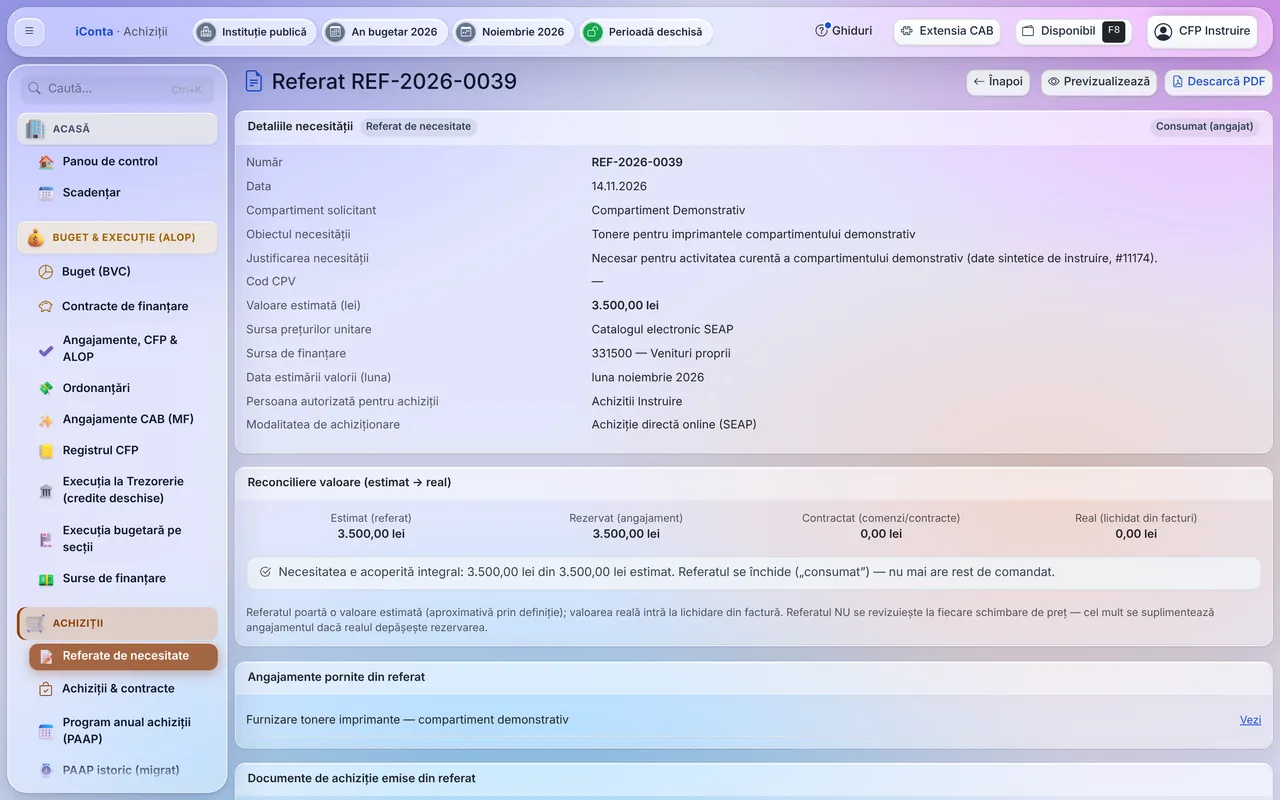
The department writes the subject, the justification and the products, with CPV code and estimated value. The chief accountant chooses the funding source and endorses it, then the authorising officer approves it or rejects it with a reason. On the statement of need you then see the estimated, reserved and contracted amounts and the amount liquidated from invoices, so that you know how much is left to order.

A test statement of need in iConta, with the estimated, reserved, contracted and liquidated value

ALOP

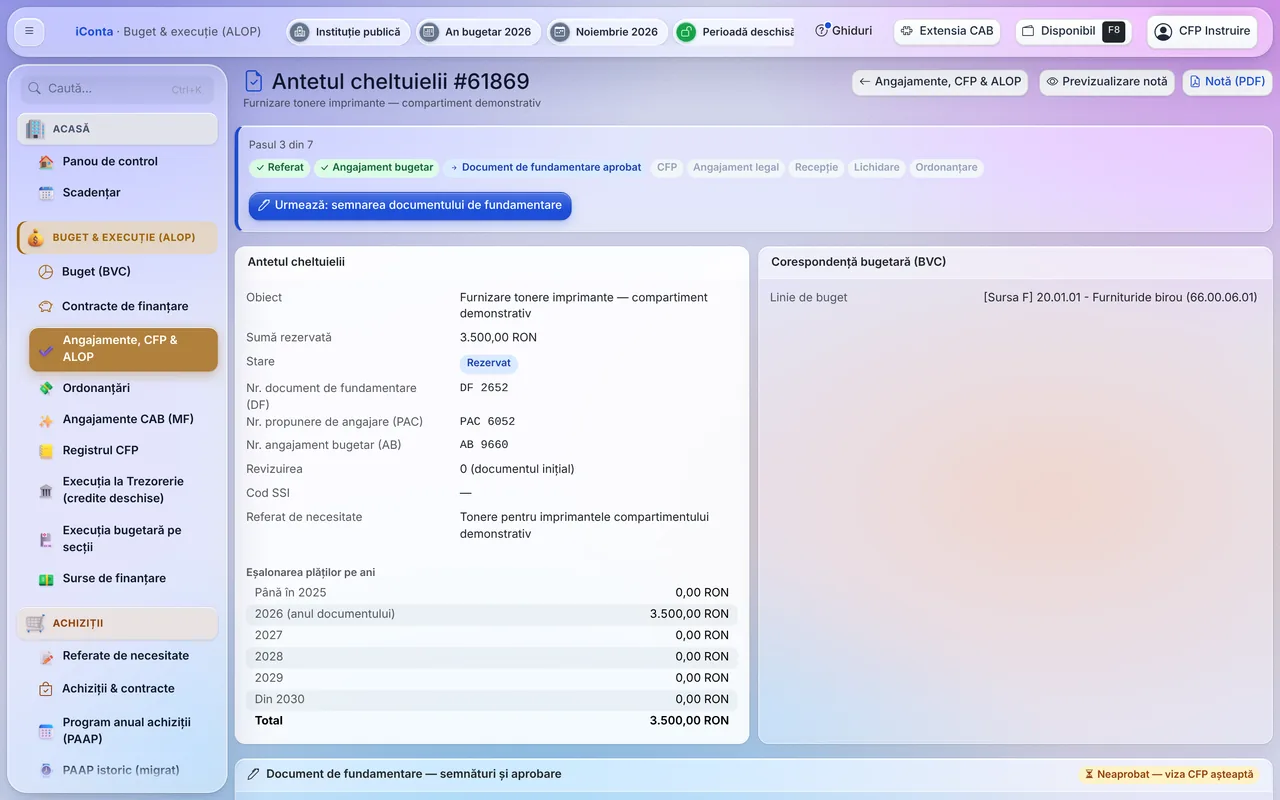
The expenditure sheet shows the next step

The steps are in order on the sheet: the statement of need, the budget commitment, the substantiation document, CFP approval, the legal commitment, receipt, liquidation and payment authorisation. The button at the top says what comes next. On the same sheet you find the payment schedule by year and the BVC line on which the amount was reserved.

The sheet of a test expenditure in iConta, with the ALOP steps and the amount reserved in the budget

e-Factura

Supplier invoices come in automatically from SPV

Once the institution connects to ANAF with its certificate, iConta brings in supplier invoices from SPV every hour. The accountant records each invoice as a payable, only once, and links it to its order and receipt. Invoices issued by the institution go to SPV, and their status is checked every 30 minutes.

  • Received invoices, every hour
  • Order, receipt, invoice
  • Issued invoices, to SPV
  • NIR on 408, invoice on 401

Preventive financial control

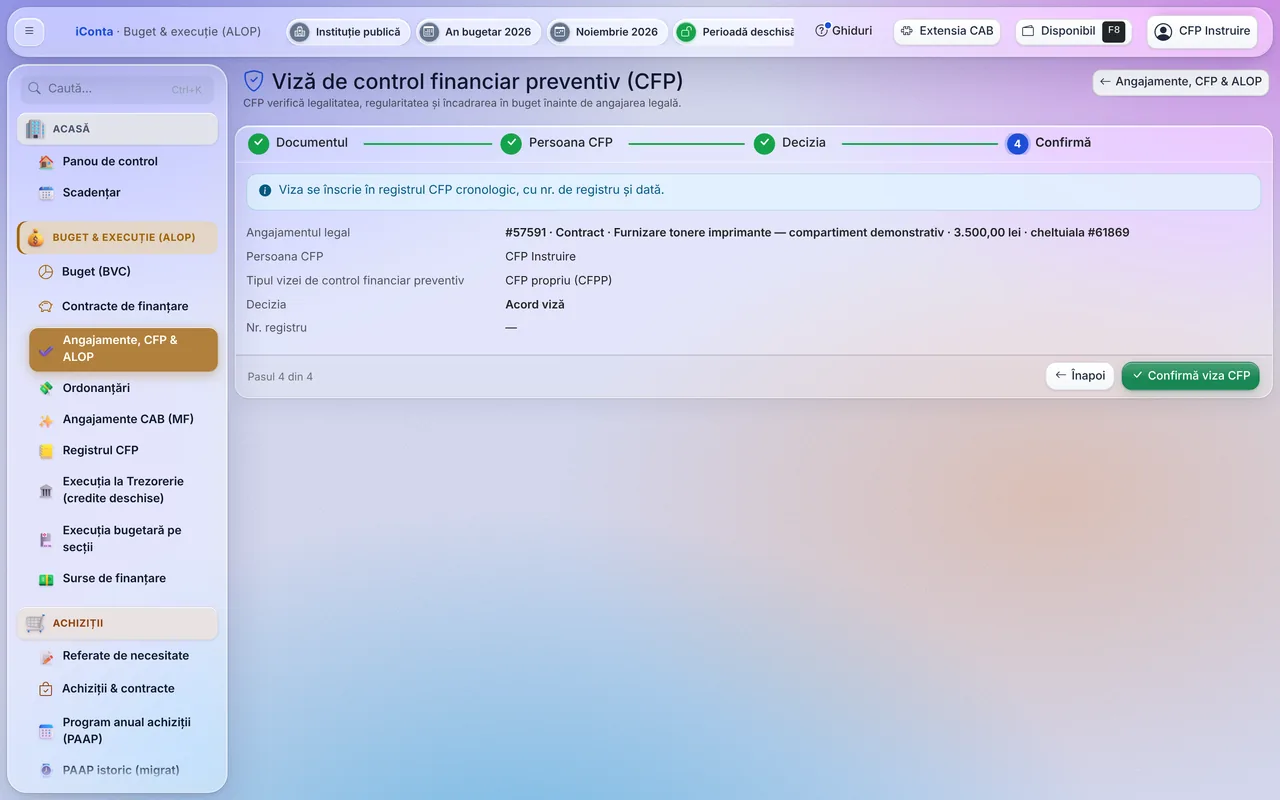
CFP approval, granted or refused with reasons

The controller chooses the document, the designated person and the decision, then confirms. The approval goes into the chronological CFP register, with a number and date, and whoever initiated the operation cannot approve it. After a refusal, the authorising officer can decide on their own responsibility, with the act attached. With FlexiDocs, the controller also signs the approval document electronically.

Preventive financial control approval on a test commitment in iConta

Reporting

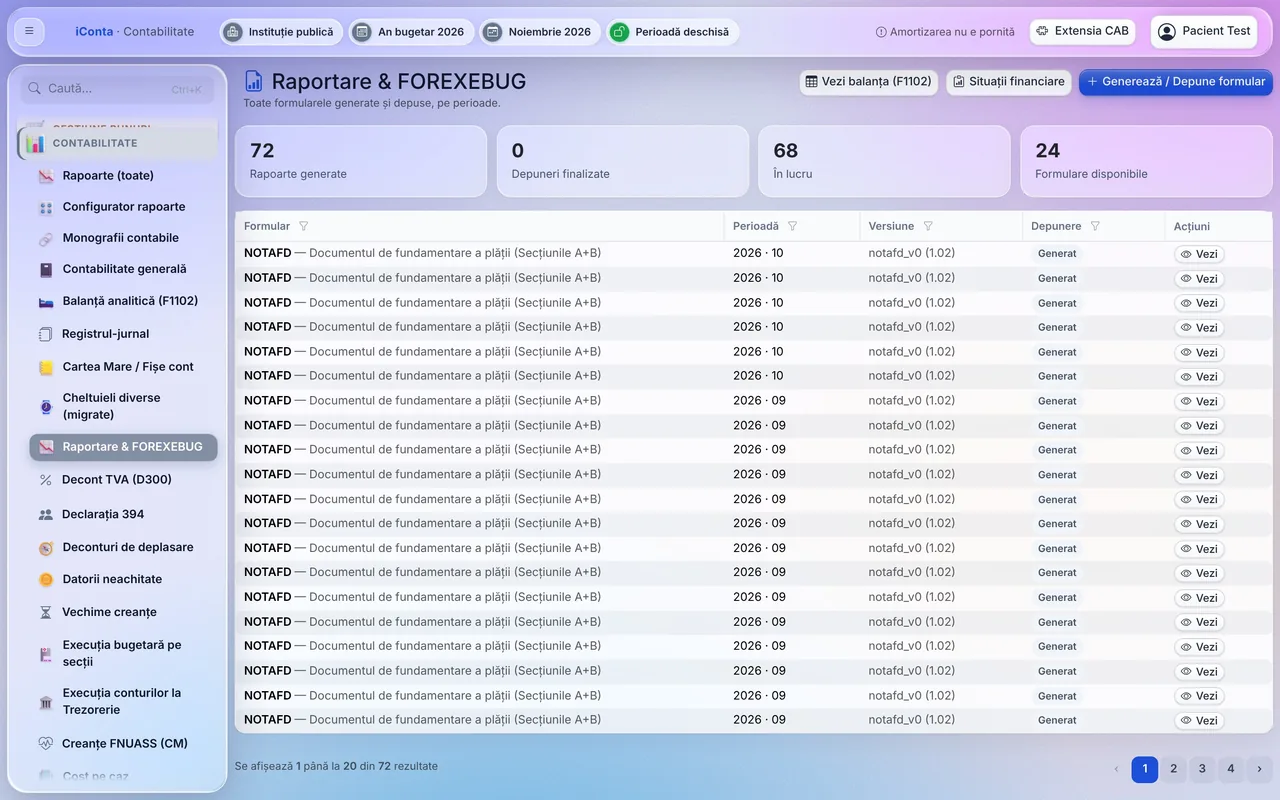
FOREXEBUG forms, validated against the schema before submission

The F1102 balance, the F1115 execution account, the annexes for assets, inventories and arrears and the other forms come out as XML validated against the official schema. A form is not generated before the forms it depends on. The register keeps every generated form, by period and version. The chief accountant signs them and uploads them to the Single Access Point.

FOREXEBUG reporting in iConta: the register of generated forms, by period

Legal obligations

What the law requires and where you do it in iConta

A public institution’s obligations regarding the budget, preventive financial control and reporting to the Ministry of Finance, with the place in the application where you fulfil them.

The phases of budget expenditure
Public Finance Law no. 500/2002 requires every budget expenditure to go through commitment, liquidation, payment authorisation and payment (Art. 52(1)). In iConta, the sheet of each expenditure follows these phases in order. The payment authorisation cannot exceed the amount liquidated as “approved for payment”, and payment is made only in the current budget year.
Preventive financial control
Government Ordinance no. 119/1999 submits to the authorising officer’s approval only the operations that bear the preventive financial control approval (Art. 10(1)), and the person giving the approval must not be involved in the operation (Art. 11). In iConta, whoever initiated the operation cannot approve it, and every approval or reasoned refusal goes into the approvals register, with a number and date.
Public institution accounting
Accounting Law no. 82/1991 requires public institutions to record established entitlements, collected revenue, budget and legal commitments, cash payments and actual expenditure, by subdivision of the budget classification (Art. 18). The chart of accounts for public institutions is approved by Order of the Minister of Public Finance no. 1.917/2005. In iConta, commitments sit on each expenditure, and the entries for receipts, consumption, depreciation and write-offs are made automatically, on the accounts of this chart.
Registers and the trial balance
The mandatory accounting registers are the Journal Register, the Inventory Register and the General Ledger (Art. 20 of Law no. 82/1991), and the trial balance is drawn up monthly (Art. 22). iConta produces all of them from the posted entries, in PDF. The finalised Inventory Register can no longer be changed.
Reporting in FOREXEBUG
Order of the Minister of Public Finance no. 517/2016 approves the procedures of the FOREXEBUG system, including the submission of the financial statement reporting forms (Art. 1(4)) and the recording of commitments in the commitment control system (Art. 1(3)). iConta generates the forms as schema-validated XML and compares the commitments with the extract from the CAB application. The chief accountant signs and uploads them.
Received electronic invoices
In public procurement, an institution that receives an electronic invoice must receive and download it through RO e-Factura, process it and check its legality (Government Emergency Ordinance no. 120/2021, Art. 7(2)). After connecting to ANAF, iConta brings in invoices from SPV every hour, and the accountant records them as payables and links them to the order and the receipt.
Public procurement
Law no. 98/2016 applies to public procurement contracts and framework agreements (Art. 5). The value thresholds are updated periodically, and the new ones apply from 1 January 2026. In iConta, thresholds have the date from which they apply, so a contract is assigned to a procedure according to the thresholds valid on its date.
Fixed assets
The catalogue on the classification and normal useful lives of fixed assets is approved by Government Decision no. 2.139/2004 (Art. 1). On registration, iConta asks for the catalogue code, and on commissioning the useful life is chosen from its range.

How to start

The first steps until you are working in iConta

  1. Try it

    The “Try it now” button opens a copy of iConta with test data, in the role you choose, for example finance director. Access lasts 7 days.

  2. Request a quote

    Public institutions buy through SEAP, based on our quote. The quote arrives by email within two working days.

  3. Bring in the data

    The implementation team brings over the items, stores, stocks, fixed assets and balances from the previous software. Previous years’ registers and PAAPs remain available for consultation in iConta.

To prepare at the institution: the certificate for SPV, so that iConta can receive and send invoices through e-Factura; FlexiDocs, if you sign electronically from the application; a computer with Windows and Adobe, if you want to preview the official forms exactly as they are printed.

How to buy

Purchasing through SEAP, by size of institution

Public institutions buy iConta through SEAP. We send you the quote and the annexes, with the price for the size of your institution, from a commune to a county seat and from a small hospital to a county hospital.

  1. You request a quote
  2. You receive the quote and the annexes
  3. The institution buys through SEAP
  4. We start the installation

Request a quote for purchasing through SEAP

Within two working days at most, we e-mail you the quote with the catalogue prices and the annexes for the purchase. Until then, you can try the applications on test data.